
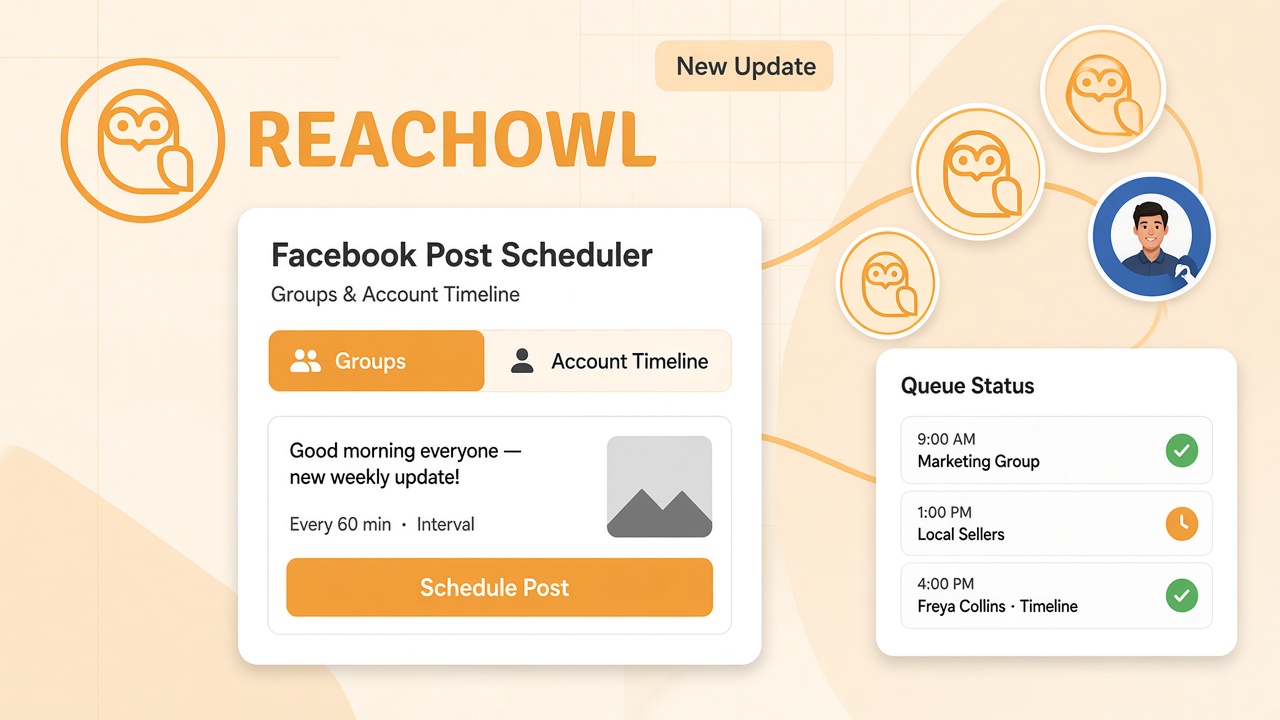
Managing Facebook content across multiple groups and accounts can take time, especially when you need to publish posts consistently throughout the day. Manually switching between accounts, opening groups, and publishing content one post at a time can make your workflow unnecessarily complicated.
ReachOwl’s Facebook post scheduler helps simplify this process by allowing you to prepare posts in advance, select where they should be published, and schedule their publishing through your connected Facebook browser sessions.
Whether you want to share announcements in Facebook groups or publish content to your own Facebook account timeline, ReachOwl gives you separate scheduling options for each destination.
With the updated Post Scheduler, you can:
- Schedule posts for selected Facebook groups using one connected Facebook account.
- Schedule posts to the timelines of one or multiple Facebook accounts.
- Create text posts, image posts, and supported text-and-background posts.
- Choose interval-based scheduling or assign posts to specific calendar dates and times.
- Monitor scheduled posts, review their status, and open published posts when a Facebook URL is available.
In this guide, you’ll learn how the Facebook post scheduler works, how to configure each destination type, and how to troubleshoot common publishing issues.
What Is the ReachOwl Facebook Post Scheduler?
The ReachOwl Facebook post scheduler is a standalone feature that helps you prepare and organize Facebook posts before they are published.
Instead of manually publishing every post at the moment you want it to appear, you can create a schedule, add your content, select the destination, and configure when the posts should run.
ReachOwl uses its Chrome extension and the relevant logged-in Facebook browser session to publish the scheduled content. This means the correct account and browser session must be available when a post is due.
The feature supports two distinct publishing workflows.
1. Facebook Groups Scheduling
Use Groups mode when you want one connected Facebook account to publish posts in multiple selected Facebook groups.
For example, if you manage several communities and want to share a product announcement or community update, you can select the relevant groups and prepare the posts in one schedule.
How it works:
- Select Groups as the destination type.
- Choose the Facebook account that will publish the posts.
- Select the destination groups already synced with ReachOwl.
- Add your post content.
- Choose an interval or calendar schedule.
- Keep the relevant browser session and ReachOwl extension available for publishing.
The selected executor account is responsible for publishing to the selected groups. Make sure the account has permission to post in those groups and that your content follows their rules.
2. Facebook Account Timeline Scheduling
Use Account Timeline mode when you want content published directly to the timelines of your connected Facebook accounts rather than to groups.
This option is especially useful when you manage multiple Facebook accounts and want to organize their individual posting schedules.
For example, you could prepare a brand update for two connected accounts. Instead of creating a separate schedule for each account, you can select both accounts in Account Timeline mode and configure the posts in one schedule.
How it works:
- Select Account Timeline or Profile as the destination.
- Select one or more connected Facebook accounts.
- Add your post content.
- Configure the interval or calendar schedule.
- Ensure each selected account’s corresponding browser session is available when its posts are due.
- Review the schedule details to check the publishing results.
Each selected account receives its own publishing queue and publishes as the Facebook user logged into its corresponding browser session.
Important: Groups and Account Timeline are separate destination types. If you want to publish to both groups and account timelines, create separate schedules for each.
Facebook Groups vs. Account Timeline: What’s the Difference?
Understanding the two destination types before creating a schedule helps prevent publishing to the wrong place.
| Feature | Facebook Groups | Account Timeline |
|---|---|---|
| Publishing destination | Selected Facebook groups | Selected accounts’ own timelines |
| Account selection | One executor account | One or more accounts |
| Destination selection | Choose synced groups | Choose Facebook accounts |
| Publishing queues | Organized around selected group destinations | Separate queue for each selected account |
| Best suited for | Community posts and group announcements | Personal or account-specific updates |
| Browser requirement | Executor account’s session | Each selected account’s corresponding session |
Choose Groups when your content is intended for specific communities. Choose Account Timeline when you want content to appear on the selected Facebook accounts’ own feeds.
Before You Start
Before creating your first Facebook post schedule, make sure the following requirements are met.
1. Create or access your ReachOwl account
Log in to your ReachOwl dashboard and open the Post Scheduler feature.
2. Connect your Facebook accounts
Go to the Browsers section and make sure the Facebook accounts you want to use are connected.
For Account Timeline scheduling, verify that each target account is logged in to its corresponding browser profile.
3. Install and activate the ReachOwl Chrome extension
The extension is responsible for processing scheduled publishing through the connected Facebook browser session.
Keep the relevant browser and extension available when posts are scheduled to run. A saved schedule does not mean that publishing will continue independently if the required browser session is unavailable.
4. Sync your Facebook groups
If you plan to publish to groups, make sure the groups you want to use have already been synced and are available in ReachOwl’s Groups list.
Also verify that your selected Facebook account can publish in those groups.
Once these requirements are ready, you can create your schedule.
Step 1: Create a New Facebook Post Schedule
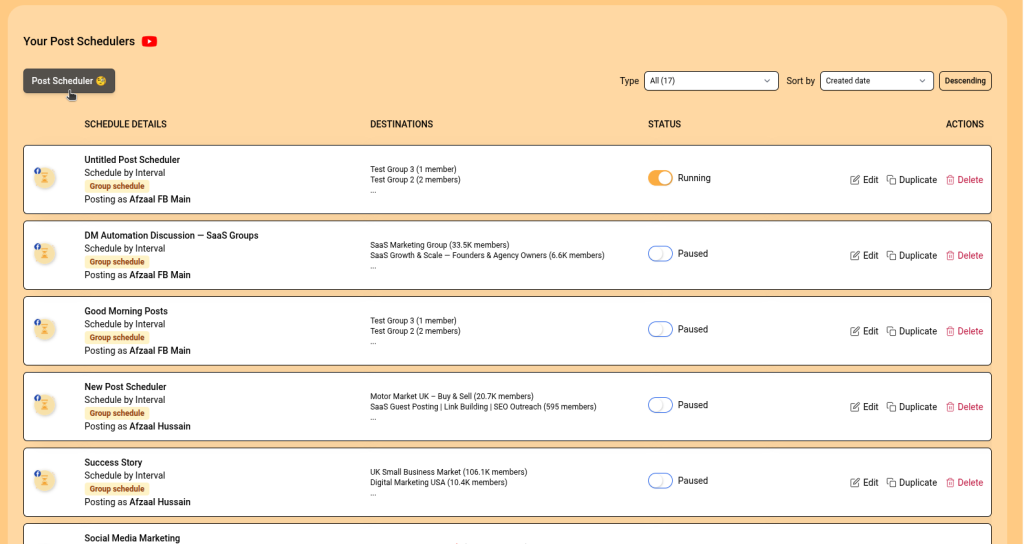
Start by opening Post Scheduler in your ReachOwl dashboard.
- Click Create or New Schedule.
- Enter a descriptive name for your schedule.
- Continue to the destination selection step.
Use names that help you identify the purpose of each schedule at a glance.
For example:
Groups – Weekly Community UpdatesTimeline – Brand Account PostsTimeline – Morning Content
Clear schedule names make it easier to manage multiple schedules and identify the correct one when reviewing publishing results.
Step 2: Select Your Publishing Destination
ReachOwl asks you to choose the destination type for the schedule. This is an important step because the destination determines how you select accounts and where the content will be published.
Option A: Select Facebook Groups
Choose Groups if you want to publish to selected Facebook groups.
After choosing this option:
- Select the Facebook account that will publish the posts.
- Search for the groups you want to target.
- Select the required groups from the synced list.
- Confirm that your selected destinations are correct.
For example, if you manage three relevant communities, you can select those groups and prepare the content for your group-posting workflow.
Before scheduling, check that the groups are correct and that the selected account is permitted to post in them.
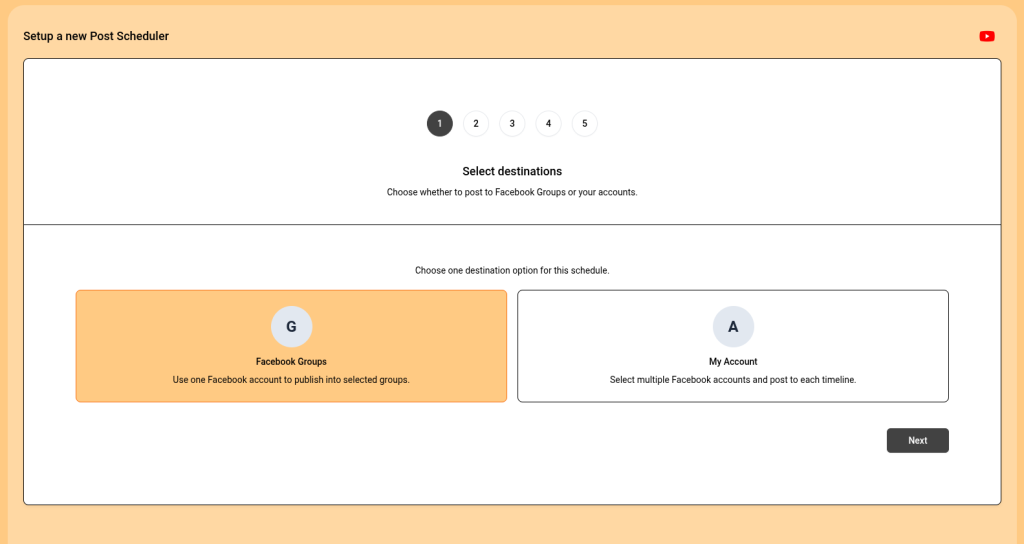
Option B: Select Account Timeline
Choose Account Timeline or Profile if you want posts to appear on the selected Facebook accounts’ own timelines.
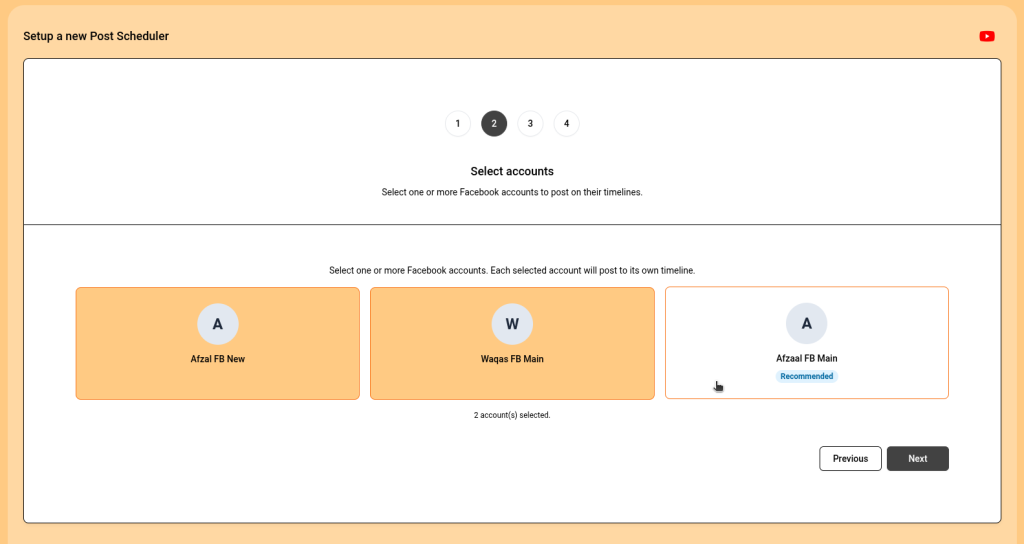
After choosing this option:
- Select the connected Facebook account or accounts.
- Check that every intended account is selected.
- Continue to the post editor.
If you select multiple accounts, ReachOwl organizes publishing through a separate queue for each account.
For example, suppose you select Facebook Account A and Facebook Account B. Both accounts can be included in the same schedule, but each account’s posts must be processed through its own corresponding browser session.
This is particularly useful when you want to coordinate content across multiple accounts without confusing their publishing destinations.
Remember: You cannot combine Groups and Account Timeline in the same schedule. Create one schedule for group publishing and another for timeline publishing.
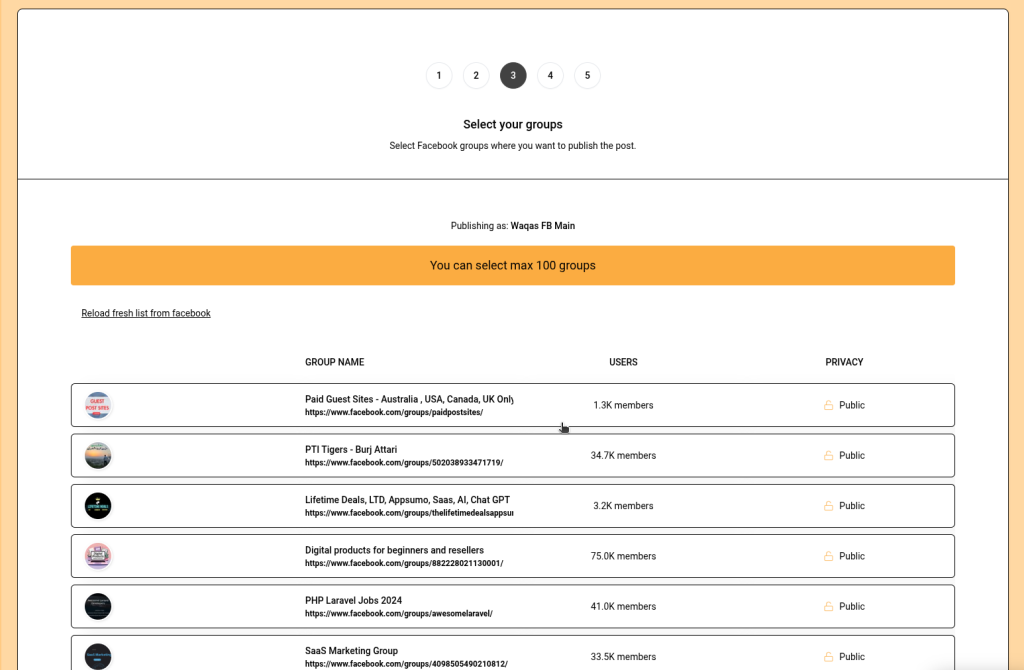
Step 3: Select Your Accounts and Destinations
The account and destination selection process depends on the mode you chose.
If you selected Groups
- Select one executor Facebook account.
- Choose the groups where you want to publish.
- Review the selected groups before continuing.
The executor account is the account that performs the publishing operation. Its Facebook session must be available when the scheduled work runs.
If you selected Account Timeline
- Select one or more connected Facebook accounts.
- Confirm that the selected accounts are the intended publishing destinations.
- Ensure each account has a corresponding browser session that can process its queue.
Do not assume that selecting multiple accounts means one browser session can publish as every account. Each account must publish as itself through the appropriate logged-in session.
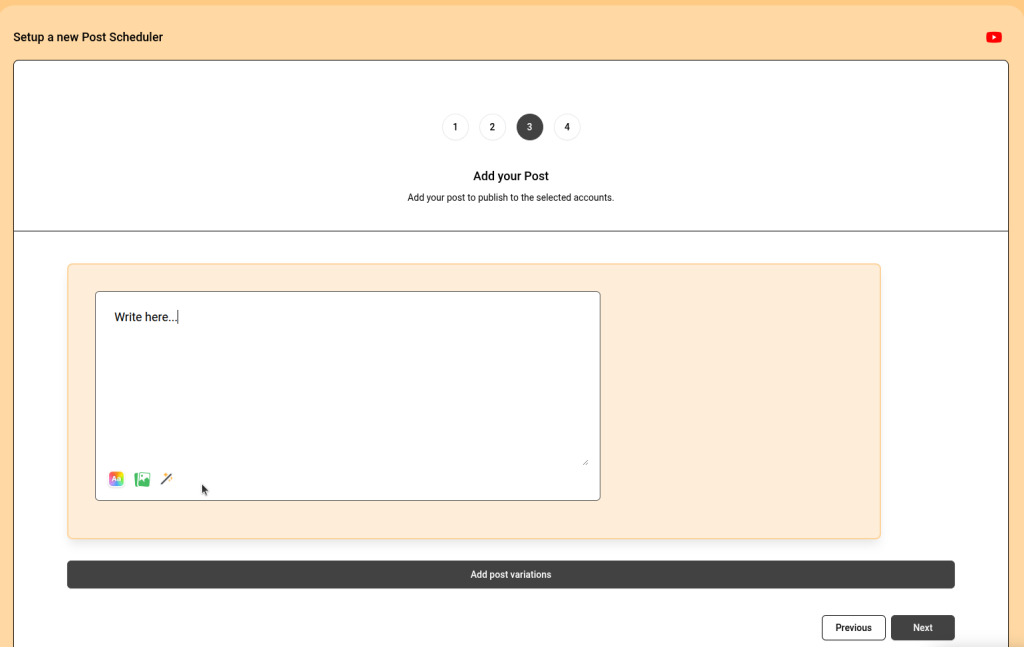
Step 4: Create Your Facebook Post Content
After selecting the destination, prepare the content you want to publish.
Depending on the options available in your ReachOwl interface, supported post formats include:
- Text: Publish a text-only Facebook post.
- Image: Publish an image.
- Text + image: Combine written content with an image.
- Text + background preset: Create a text post with a supported background style.
Write your message, attach the required media, and continue through the post editor.
Tips for preparing effective posts
Write for the destination. A community announcement may need different wording from a post intended for your own account timeline.
Keep your content relevant. When publishing to groups, ensure the post is appropriate for the community and follows its posting rules.
Check your media. Confirm that the correct image is attached and that the content looks as intended before scheduling.
Review your content before saving. Check spelling, links, formatting, and the intended message so that you do not have to correct avoidable mistakes after publication.
If your schedule contains multiple posts, review each post carefully to ensure the correct content is associated with the intended publishing workflow.
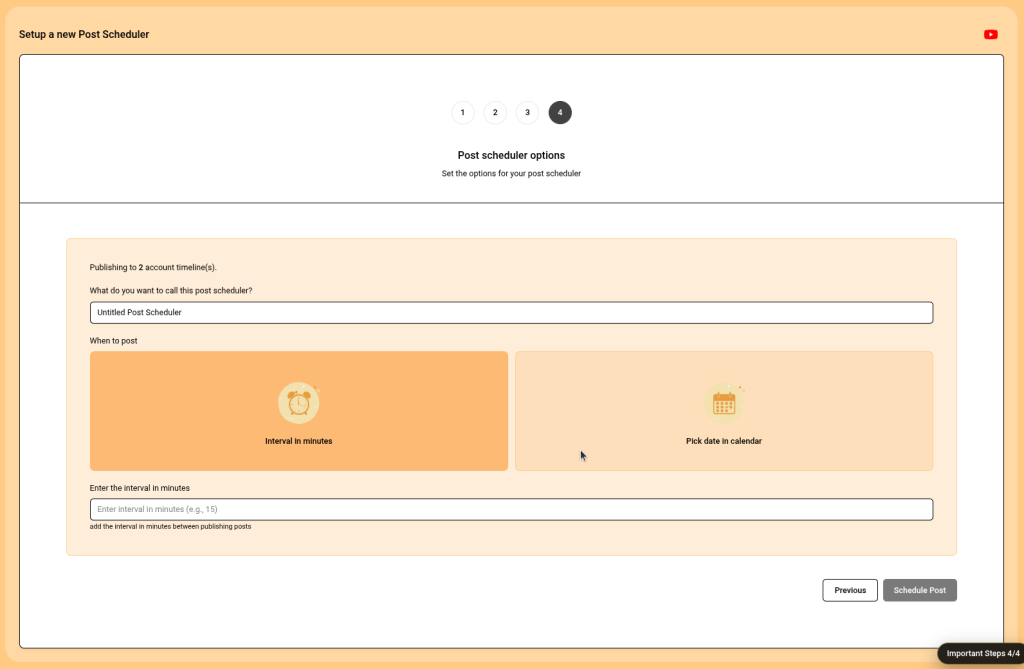
Step 5: Choose How Your Posts Will Be Scheduled
ReachOwl supports two scheduling methods: Interval and Calendar.
The right option depends on whether you want posts spaced apart automatically or assigned to specific dates and times.
Method 1: Interval Scheduling
Interval scheduling is useful when you want posts to be spaced out by a defined amount of time.
For example, you might want the next scheduled post to run 60 minutes after the previous one.
To configure interval scheduling:
- Select Interval as your scheduling method.
- Enter the desired interval in minutes.
- Save your schedule.
Use an interval that suits your content plan and the number of destinations involved.
For example, a 60-minute interval can help space publishing activity throughout the day rather than placing every post at the same time.
Keep in mind that an interval is a scheduling setting, not a guarantee of the exact publication time. Actual execution can depend on browser availability, the queue, and Facebook’s response.
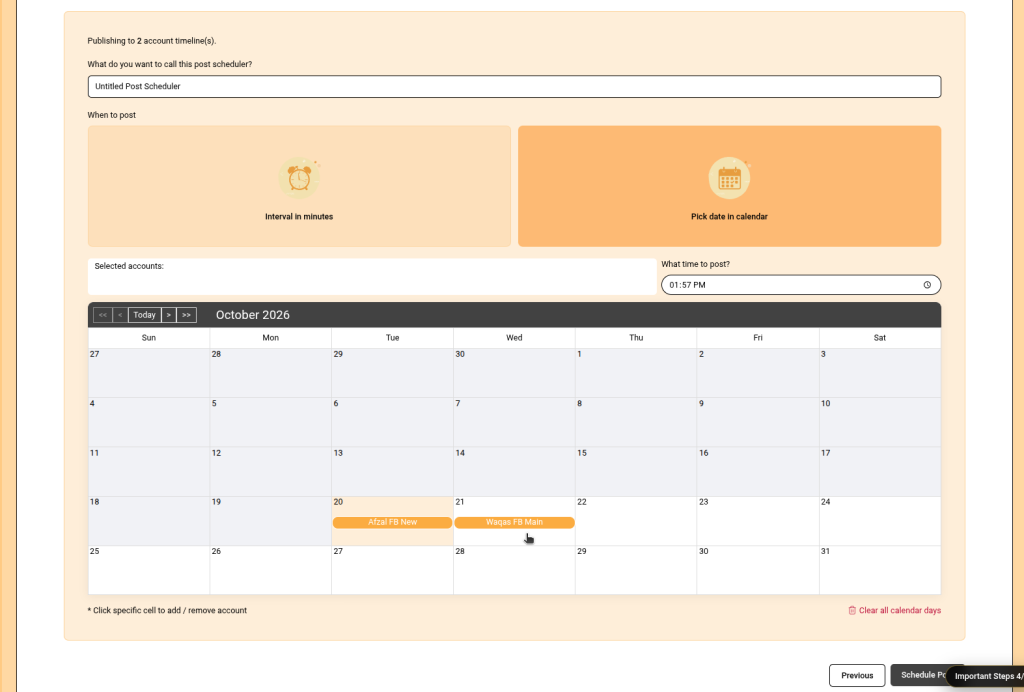
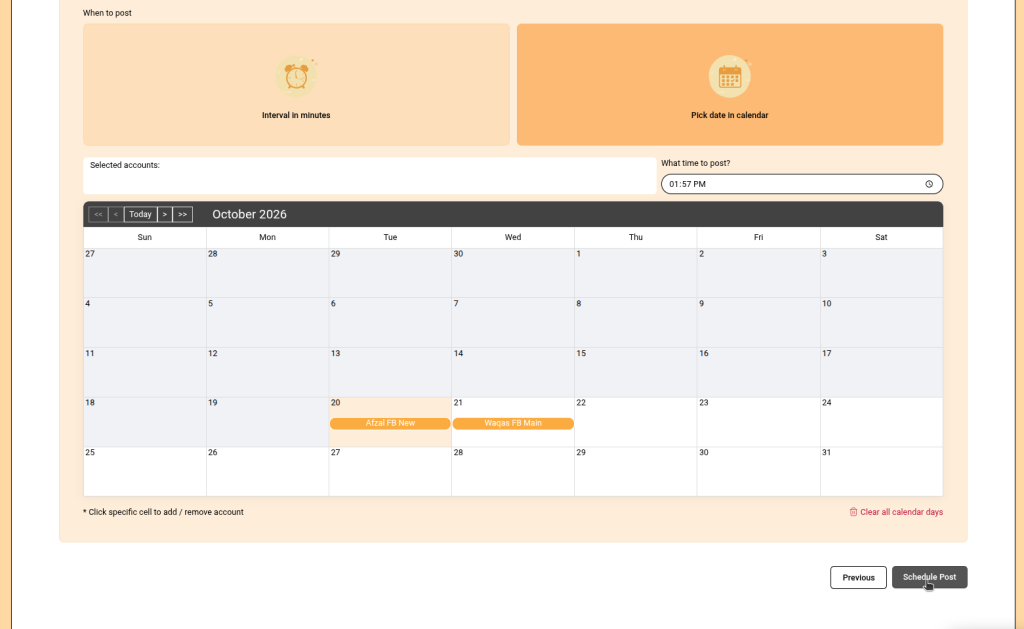
Method 2: Calendar Scheduling
Calendar scheduling is useful when you want to organize posts around particular dates and times.
For example, you might want to schedule an announcement for Monday morning and another post for Wednesday afternoon.
To configure calendar scheduling:
- Select Calendar as your scheduling method.
- Assign the relevant destinations to the calendar.
- Set the intended date and time where prompted.
- Review the planned entries.
- Save the schedule.
In Groups mode, the calendar entries correspond to group destinations. In Account Timeline mode, the entries correspond to the selected account destinations rather than groups.
Calendar scheduling is a good choice when you already have a content calendar and want publishing to follow a planned timetable.
Which scheduling method should you choose?
Choose Interval if you want to space posts using a repeating time gap. Choose Calendar if you need more control over individual publishing dates and times.
Step 6: Save and Activate Your Schedule
Once you have configured the destination, accounts, content, and scheduling method, review everything before saving.
Check the following:
- The correct destination type is selected.
- The intended accounts and groups are selected.
- Your post content and media are correct.
- The interval or calendar entries match your plan.
- The relevant Facebook browser sessions are connected and available.
Save the schedule and confirm that its status is On or Active, according to the status labels shown in your interface.
Keep the correct browser sessions available
ReachOwl processes publishing through the relevant connected browser sessions. The required browser and extension need to remain available for scheduled work to execute.
For Groups mode, make sure the executor account’s browser session is ready.
For Account Timeline mode, ensure that each selected account’s corresponding session is available when its queue is due.
If the relevant session is disconnected or unavailable, a scheduled post may fail or remain unprocessed until the issue is resolved.
Step 7: Monitor Publishing Results
Creating a schedule is only part of the process. Reviewing its results helps you confirm that the content was published to the intended destination.
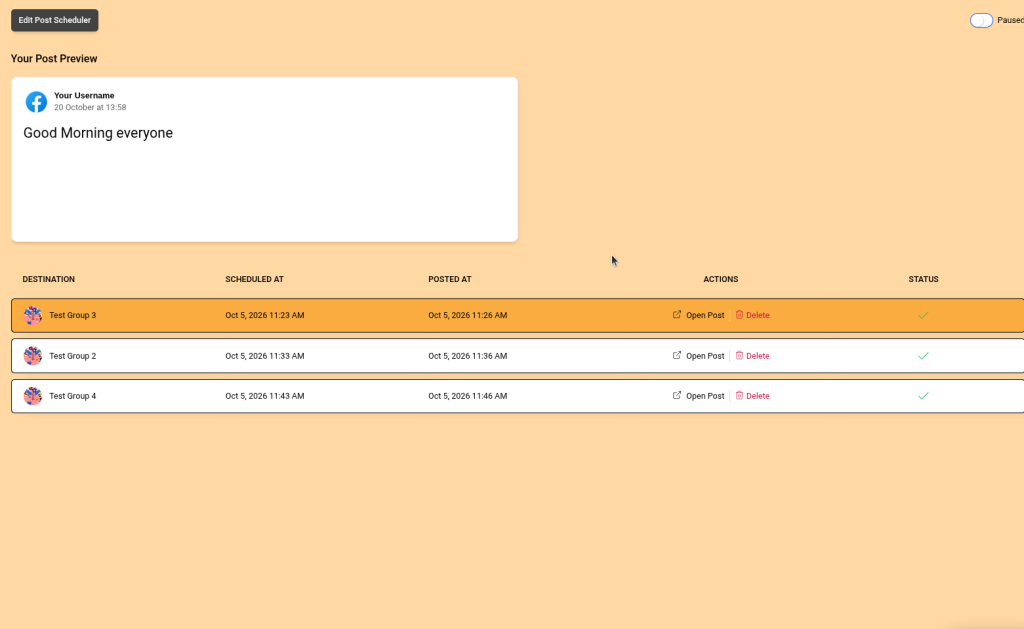
Open the schedule details page to inspect the individual queue entries.
Depending on the entry and publishing result, you can review:
- Destination: The target group or the account timeline associated with the entry.
- Scheduled at: The planned publishing time.
- Posted at: The recorded publishing time, when available.
- Status: Whether the entry succeeded or failed.
- Open Post: Opens the published Facebook URL when one is available.
How to verify your first scheduled post
After your first scheduled entry runs:
- Open the schedule details page.
- Locate the relevant queue entry.
- Review its status.
- Use Open Post when a published URL is available.
- Confirm that the content appeared in the expected Facebook destination.
This first check is particularly useful when setting up a new schedule, changing the destination type, or working with a newly connected account.
If a post fails, review the account connection, browser session, selected destination, and schedule configuration before retrying.
Best Practices for Reliable Facebook Post Scheduling
Follow these recommendations to make your scheduling workflow easier to manage.
1. Keep destination types separate
Use one schedule for Facebook Groups and another for Account Timeline publishing. This makes it easier to understand where each post is intended to appear.
2. Match every account to its browser session
For timeline posts, verify that the browser session processing the queue is logged into the intended Facebook account. This is essential when managing multiple accounts.
3. Sync groups before scheduling
Make sure the groups you want to target are available in ReachOwl before creating a group schedule. Review the group selection before saving.
4. Use sensible posting intervals
Avoid unnecessarily aggressive posting schedules. Allow time between posts, keep your activity appropriate for each destination, and follow Facebook’s rules and any applicable group restrictions.
No scheduling tool can guarantee that activity will never be flagged or restricted by Facebook.
5. Use calendar scheduling for planned campaigns
If you have a specific publishing calendar, assign posts to their intended dates and times instead of relying on a general interval.
6. Test a new schedule first
When using a new destination type or browser account, verify the first publishing result before relying on the workflow for a larger content plan.
7. Keep schedule names descriptive
Use names that identify the destination and purpose of the schedule. This is especially helpful when you manage multiple Facebook accounts or groups.
8. Review old schedules before testing changes
Pause schedules that you no longer want to run, where appropriate, so their existing queue entries do not cause confusion during testing.
Troubleshooting Common Facebook Post Scheduler Issues
If a post does not publish as expected, use the following troubleshooting guide.
| Issue | Possible cause | What to check |
|---|---|---|
| A post appears on the wrong account | The wrong Facebook session processed the queue | Check the logged-in account and the browser session assigned to the work |
| A group post fails | The group is not synced, or the account cannot post there | Sync the group again, confirm the selection, and verify posting permissions |
| An account timeline post does not publish | The account session or extension is unavailable | Check the connection, logged-in account, browser, and extension |
| A post is not published at the expected time | The queue has not executed, or the browser is unavailable | Review the schedule, queue status, and relevant browser session |
| Open Post does not provide the expected destination | A published URL may not be available or the stored link may be incomplete | Check the queue result and verify the post directly on Facebook |
| The Save or Schedule option is unavailable | A required account or destination has not been selected | Groups mode needs an executor account and groups; Account Timeline needs at least one account |
| A post appears in the wrong group | The wrong group was selected | Review the destination list before saving the schedule |
What to do when a scheduled post fails
Start with the schedule details page rather than immediately creating another schedule.
- Identify the failed queue entry.
- Confirm the intended account and destination.
- Check that the required browser session and extension are available.
- Review the content and scheduling configuration.
- Resolve the issue and retry only when appropriate.
Avoid repeatedly retrying a failed post without understanding the cause, as this can make it harder to identify what happened and may create duplicate content if an earlier attempt actually succeeded.
Frequently Asked Questions
Can I publish to Facebook groups and my account timeline in one schedule?
No. Groups and Account Timeline are separate destination types. Create one schedule for group publishing and another for timeline publishing.
Can I schedule posts to multiple Facebook accounts?
Yes. In Account Timeline mode, you can select multiple connected Facebook accounts. ReachOwl organizes a separate publishing queue for each selected account.
Can one Facebook account publish to multiple groups?
Yes. In Groups mode, select one executor account and the groups where you want to publish, provided the account has permission to post in those groups.
Does the Facebook post scheduler work without the browser open?
The relevant browser session and ReachOwl Chrome extension must be available for scheduled publishing to execute. Do not assume that a saved schedule will continue publishing independently of the required browser session.
Can I schedule text and image posts?
ReachOwl supports text, image, text-and-image, and supported text-with-background formats, depending on the options available in your interface.
What is the difference between Interval and Calendar scheduling?
Interval scheduling spaces posts using a configured time interval. Calendar scheduling lets you assign destinations to planned dates and times.
How can I confirm that a post was published?
Open the schedule details page and review the queue entry’s status and publishing information. If an Open Post link is available, use it to check the published content on Facebook.
Does the Facebook post scheduler guarantee that Facebook will not restrict my account?
No. Scheduling helps organize publishing, but it cannot guarantee immunity from Facebook restrictions. Keep posting activity reasonable, follow Facebook’s policies, and respect group rules and account limits.
Where can I manage my schedules?
Open Post Scheduler in ReachOwl to review your schedules. Open an individual schedule’s details page to inspect its queue entries and available publishing links.
Conclusion
ReachOwl’s updated Facebook post scheduler helps you organize Facebook publishing through two separate workflows: Facebook Groups and Account Timeline.
Use Groups mode when you want one connected Facebook account to publish to selected groups. Use Account Timeline mode when you want one or more Facebook accounts to publish to their own timelines, with a separate queue for each account.
You can prepare content in advance, choose interval or calendar scheduling, and review publishing results from the schedule details page.
To get started, open ReachOwl, navigate to Post Scheduler, create a new schedule, select your destination, prepare your post content, and configure when it should be published.
Prepare your content once, organize your publishing workflow, and manage your Facebook posts more efficiently with ReachOwl.
Suggested Internal Links
Add these links naturally within the published article:
- ReachOwl Pricing: https://reachowl.com/pricing
- ReachOwl Dashboard: https://app.reachowl.com/
- ReachOwl Documentation: https://reach-owl.mintlify.site/
Replace or add links to your actual Chrome extension installation guide, Browsers setup guide, and Groups sync documentation if those pages are available.
WordPress SEO Settings
- SEO title: Facebook Post Scheduler: Groups & Profiles | ReachOwl
- Focus keyword: Facebook post scheduler
- Slug: facebook-post-scheduler
- Meta description: Learn how to use ReachOwl’s Facebook post scheduler to publish posts to Facebook groups or multiple account timelines with interval and calendar scheduling.
- Category: Product Updates
- Suggested tags: Facebook Post Scheduler, Facebook Automation, Facebook Groups, Social Media Scheduling, ReachOwl
- Featured image:
reachowl-facebook-post-scheduler-feature.jpg - Image alt text: ReachOwl Facebook post scheduler for Facebook groups and account timelines
Before publishing, replace any placeholder canonical URL with the actual live article URL. Add the suggested screenshots at the relevant steps, and remove this SEO and internal-link checklist from the public-facing article if you do not want it displayed to readers.