
Facebook posts can generate a lot of engagement, but manually responding to every comment can quickly become difficult.
People may comment asking for pricing, more information, a demo, a link, or details about your product or service. If those comments are not answered quickly, you may miss an opportunity to start a conversation with a potential customer.
Facebook Comment Automation helps simplify this process.
With ReachOwl, you can monitor comments on selected Facebook posts, detect specific trigger keywords, automatically post a public reply, and send a private message to the commenter.
For example, if someone comments “price,” “interested,” “details,” or another keyword you configure, your automation can respond based on the workflow you have created.
This can help businesses, marketers, agencies, and creators turn Facebook post engagement into conversations without manually checking and responding to every relevant comment.
In this guide, you will learn how to set up Facebook Comment Automation with ReachOwl, from selecting your Facebook account and adding post URLs to creating keyword triggers, public replies, and private Messenger messages.
ReachOwl uses a simple step-by-step setup process.
The current Facebook Comment Automation flow consists of six stages:
1. Select Facebook account
2. Add Facebook post URLs
3. Add trigger keywords
4. Create the public comment reply
5. Create the private DM
6. Save and run the automation
Here is how to configure each part.
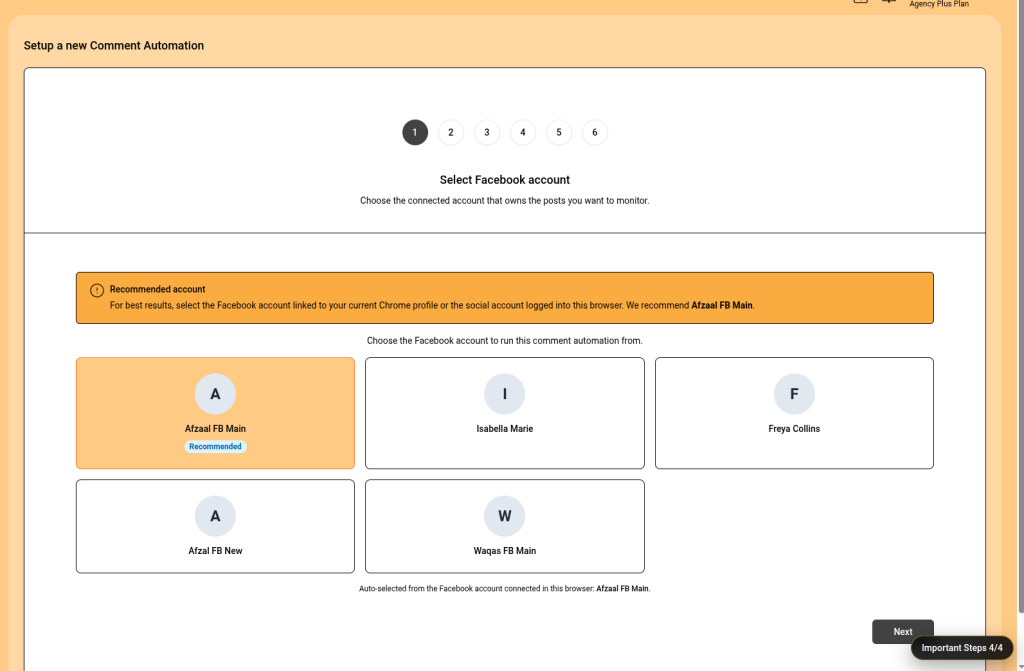
Step 1: Select the Facebook Account
Start by selecting the connected Facebook account that should run the comment automation.
ReachOwl displays the Facebook accounts available in your workspace and can recommend the account associated with your current browser session.
For best results, select the account that owns or has access to the Facebook posts you want to monitor.
In the example shown in ReachOwl, the interface recommends the account connected to the current Chrome profile.
What to do
Choose the Facebook account you want ReachOwl to use for:
- Monitoring comments
- Posting public replies
- Sending private messages
Once selected, click Next.
Suggested alt text:ReachOwl Facebook Comment Automation select Facebook account
Step 2: Add the Facebook Post URLs
Next, tell ReachOwl which Facebook posts you want to monitor.
You can paste one Facebook post URL or add multiple posts to the same automation.
This is useful if you are running the same offer, lead magnet, promotion, webinar, or campaign across several Facebook posts.
ReachOwl provides an Add more option so multiple post URLs can be monitored from the same automation.
For example, you could monitor:
- A Facebook profile post
- A Facebook group post
- Multiple promotional posts
- Several posts related to the same campaign
What to do
Paste the complete Facebook post URL into the field.
If you want to monitor additional posts, click Add more and paste the other URLs.
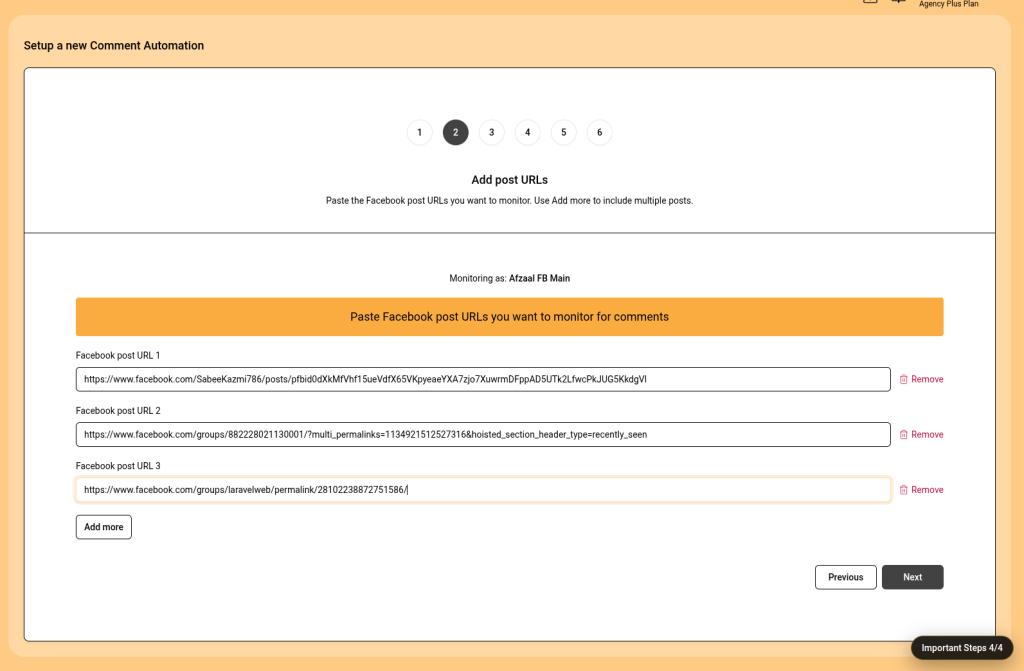
Then click Next.
Step 3: Add Comment Trigger Keywords
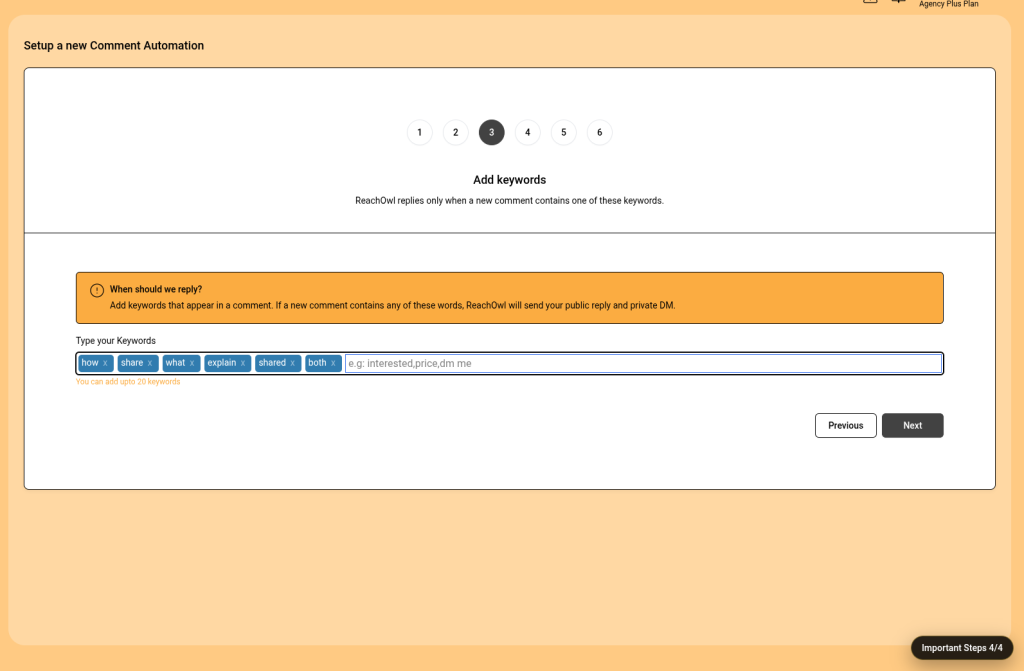
Now define the words that should trigger your automation.
ReachOwl checks incoming comments on the selected posts and responds when a new comment contains one of the configured keywords.
You can add several keywords depending on the intent you want to capture.
For example:
price
interested
info
details
demo
guide
send
how
explain
share
You can configure up to the number of keywords supported by the interface and use different variations to catch natural language responses.
For example, someone may not type exactly:
“INFO”
They might instead write:
“Can you share more info?”
or:
“How does this work?”
Adding several relevant keywords gives you a better chance of matching the kinds of comments your audience naturally leaves.
Example
Suppose your Facebook post says:
“Want to know how ReachOwl works? Comment below and I’ll send the details.”
Your keywords might include:
howdetailsexplainshareinterested
When a new comment contains one of those words, ReachOwl can trigger the responses you configure in the next steps.
Step 4: Create the Public Comment Reply
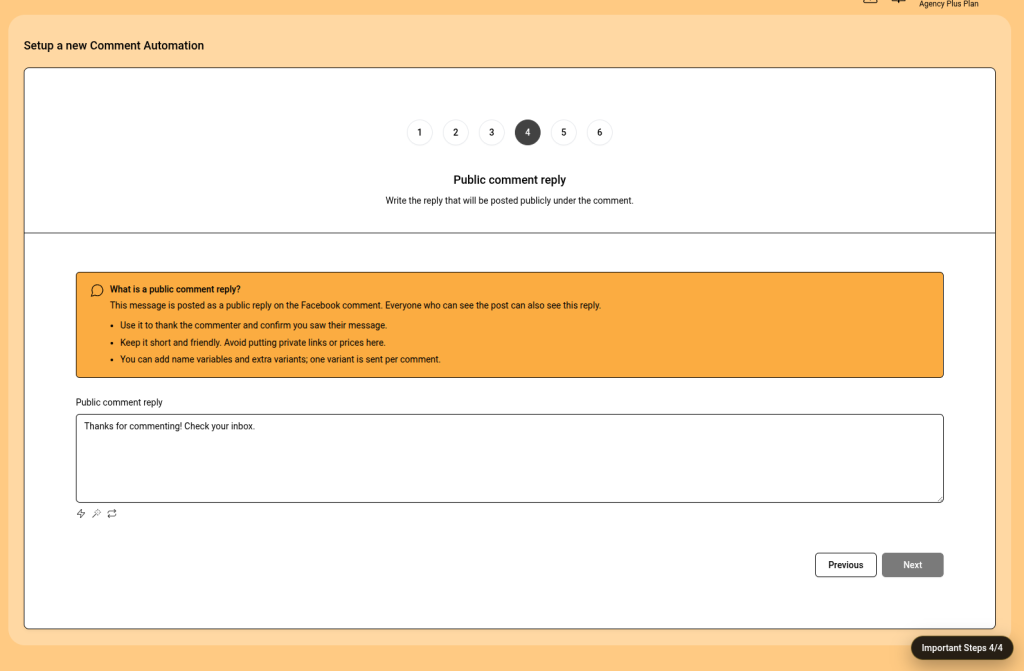
The next step is the public reply.
This is the message ReachOwl posts directly underneath the Facebook comment.
Everyone who can see the original Facebook post may also be able to see this reply, so it is best to keep it short, natural, and conversational.
A public reply is ideal for acknowledging the commenter.
For example:
“Thanks! I’ve just sent you the details 👋”
or:
“Thanks for your interest! Check your messages 😊”
or:
“Sure! I’ll send you more information privately.”
Avoid placing sensitive information, private offers, detailed pricing, or long sales messages directly in the public reply.
Those details are better suited to the private DM in Step 5.
Better than this
Instead of:
“Visit https://reachowl.com”
use something more conversational:
“Thanks for your interest! I’ve sent you the details privately 👋”
This makes the automated interaction feel much more natural.
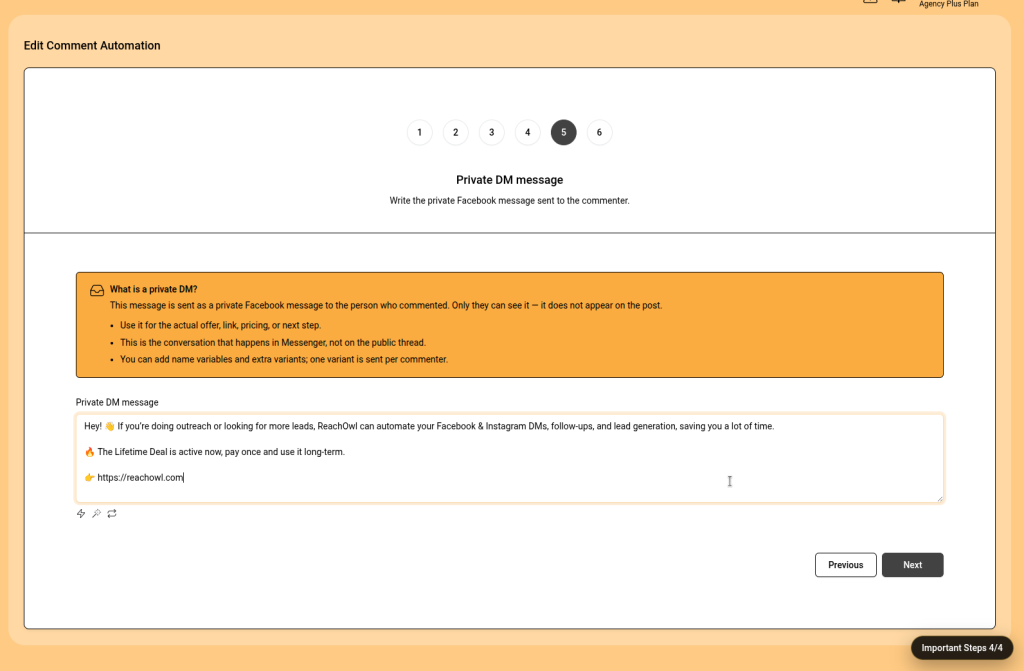
Step 5: Create the Private Facebook DM
After the public reply, configure the private message ReachOwl sends to the commenter.
This is where you can provide the actual information the person requested.
For example:
Hey! 👋 Thanks for your interest in ReachOwl.
ReachOwl helps automate Facebook and Instagram outreach, follow-ups, and lead generation so you can spend less time on repetitive work.
You can learn more here:
https://reachowl.com
The private message can contain more information than the public reply because it is sent directly to the person through Facebook Messenger.
You can use it for things such as:
- Product details
- Pricing information
- Landing-page links
- Booking links
- Lead magnets
- Demo information
- Event registration
- Consultation details
- Next-step instructions
ReachOwl also supports message variations and personalization options, allowing campaigns to feel less repetitive.
Public Reply vs Private DM
A good structure is:
Public reply:
“Thanks! I’ve sent you the details privately 👋”
Private DM:
“Hey! Thanks for your interest. Here’s the information you requested…”
This keeps the public conversation clean while moving the meaningful conversation into Messenger.
Step 6: Save and Activate the Comment Automation
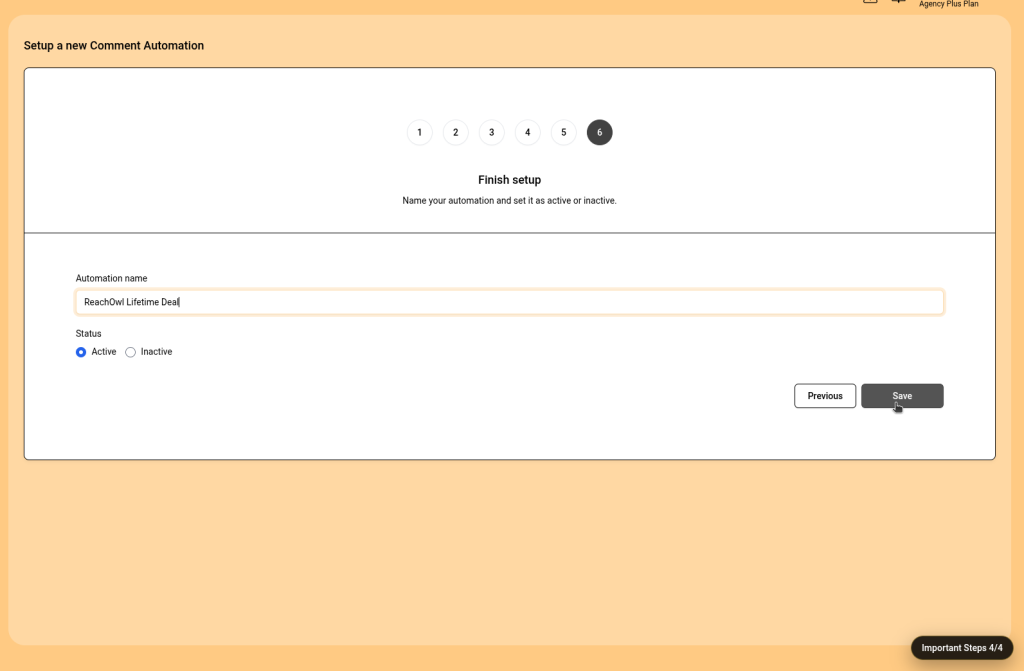
After completing the setup, save the automation so ReachOwl can begin monitoring the configured Facebook posts.
Your automation then appears in the Your Comment Automations section.
From this screen, you can see important information such as:
- Automation name
- Assigned Facebook account
- Number of monitored posts
- Trigger keywords
- Current status
- Activity
- Edit option
- Delete option
You can also use the status control to manage whether an automation is currently running.
This makes it easy to create separate automations for different offers, posts, products, or client campaigns.
Explore More ReachOwl Features
Facebook Comment Automation is one part of the broader social media automation tools available in ReachOwl.
You may also want to explore:
- Facebook and Instagram Outreach Campaigns: Create automated outreach sequences to connect and communicate with potential leads.
- Keyword Monitoring: Monitor relevant keywords and discover conversations related to your business or offer.
- Facebook Post Scheduler: Schedule and manage Facebook posts from ReachOwl.
- Instagram Profile Growth: Automate engagement activities to support profile growth.
- CSV Lead Import: Upload your own list of leads and use them in your outreach workflows.
- ReachOwl for Developers: Connect ReachOwl with external tools, applications, and AI agents.
Suggested internal links to add:
- Link Facebook and Instagram Outreach Campaigns to your main campaign or features page.
- Link Keyword Monitoring to the ReachOwl keyword monitoring feature or related blog.
- Link Facebook Post Scheduler to your post scheduling feature page.
- Link Instagram Profile Growth to the Profile Growth tool or blog.
- Link ReachOwl for Developers to your developer documentation:
https://reach-owl.mintlify.site/ - Link ReachOwl or social media automation tools to your homepage:
https://reachowl.com/ - Link to your related blog about Facebook or Instagram automation where relevant.
You can also add a contextual internal link earlier in the article after the introduction, such as:
ReachOwl also offers other tools for Facebook and Instagram automation, allowing you to manage outreach, leads, monitoring, and social media workflows from one platform.
Link Facebook and Instagram automation to your main features or product page.
Useful External Resources About Facebook Engagement
If you want to provide readers with additional information about managing Facebook content and conversations, you can link to relevant official resources from Meta.
For example, you can reference:
These external resources can provide additional background for readers who want to learn more about managing Facebook content and business conversations.
When adding external links, use relevant resources naturally inside the content rather than adding too many unrelated links. For example:
Businesses managing a high volume of Facebook engagement can also explore resources available through Meta’s business tools to better understand how Facebook content and customer conversations are managed.
Start Using Facebook Comment Automation with ReachOwl
Comments can be more than simple engagement.
A comment asking for a price, demo, guide, or more information can be the beginning of a valuable customer conversation.
With Facebook Comment Automation, you can create a workflow that monitors selected Facebook posts, detects relevant keywords, posts a public reply, and sends a private message to interested commenters.
Instead of manually checking every comment, you can create automations around the types of responses that matter most to your business.
Whether you are promoting a product, collecting leads, sharing a resource, booking demos, or running campaigns for clients, Facebook Comment Automation with ReachOwl can help you create a more organized process for responding to Facebook engagement.
Ready to get started?
Create your first Facebook Comment Automation in ReachOwl and turn relevant Facebook comments into conversations.
Suggested CTA link: https://app.reachowl.com/app/comment-automations
You can also learn more about ReachOwl and its social media automation features at.