
Engaging with your audience is important for a successful marketing campaign. With ReachOwl, you can take your Facebook outreach to the next level by targeting people who have interacted with your post ads.
In this tutorial, we’ll walk you through the step-by-step process of setting up a ReachOwl campaign to reach out to users who have commented on your Facebook post ads.
Let’s get started!
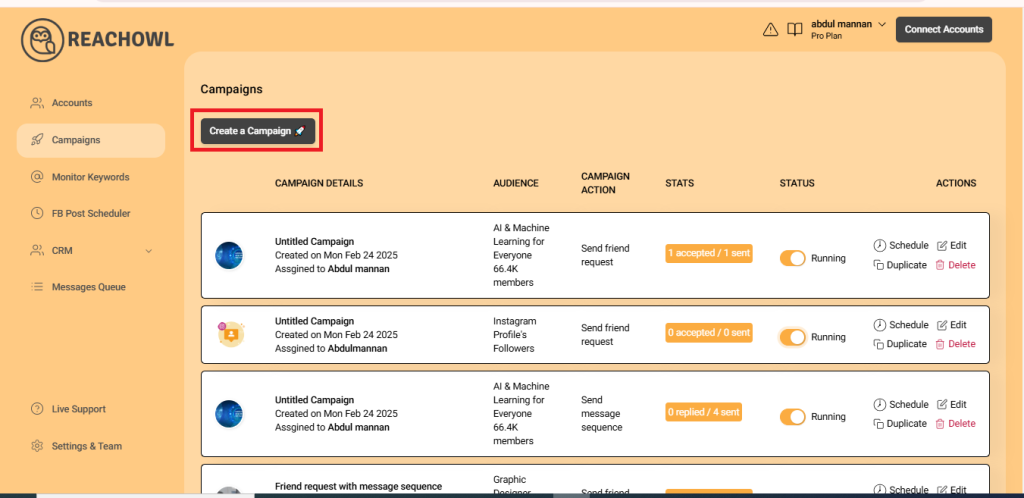
Step 1: Select the “Create Campaign” option
Log in to your ReachOwl account and select the “Create Campaign” option to initiate the campaign setup.
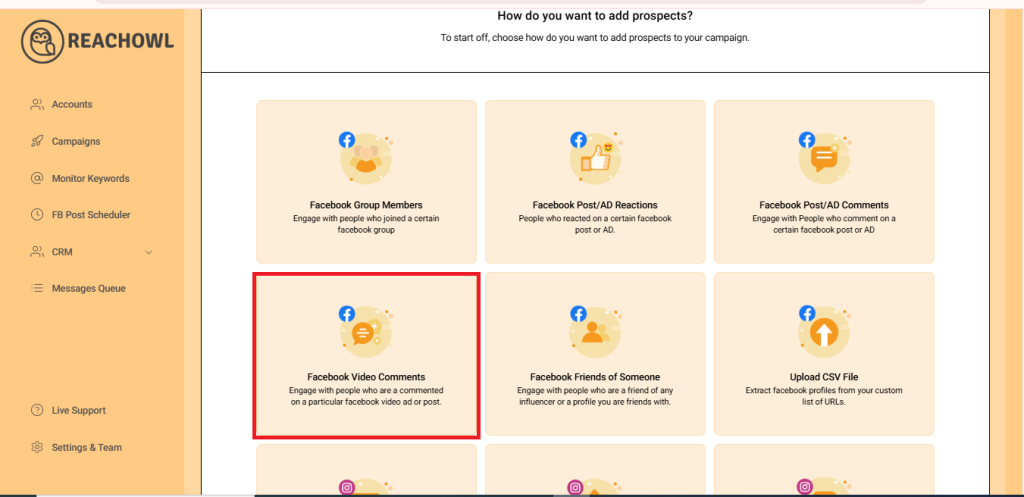
Step 2: Choose the “Facebook Video Comment” option
From the campaign creation options, select “Facebook Video Comment” as your desired campaign type.
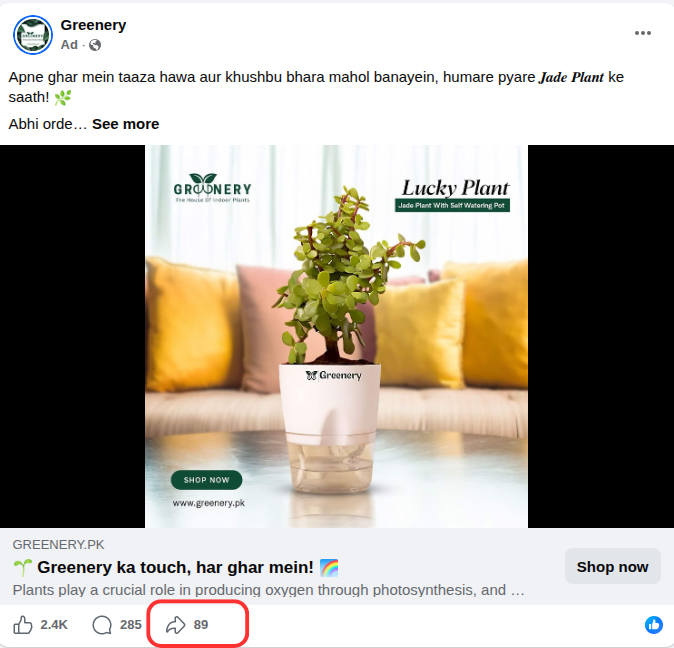
Step 3: Find the Post
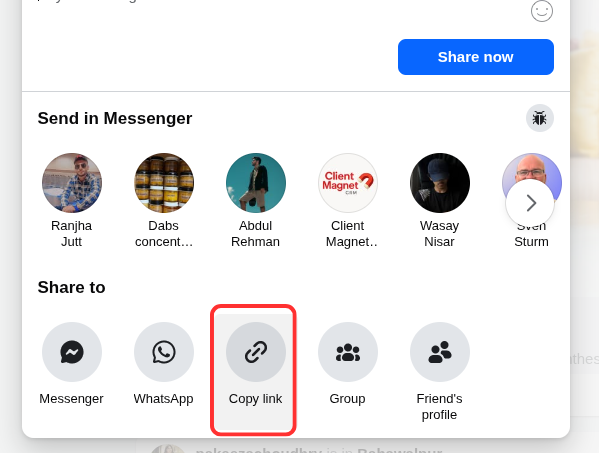
Locate the Facebook post ad on your feed and click share icon at the bottom of the post.
Step 4: Copy the link
Click on “Copy link” icon to copy the post url
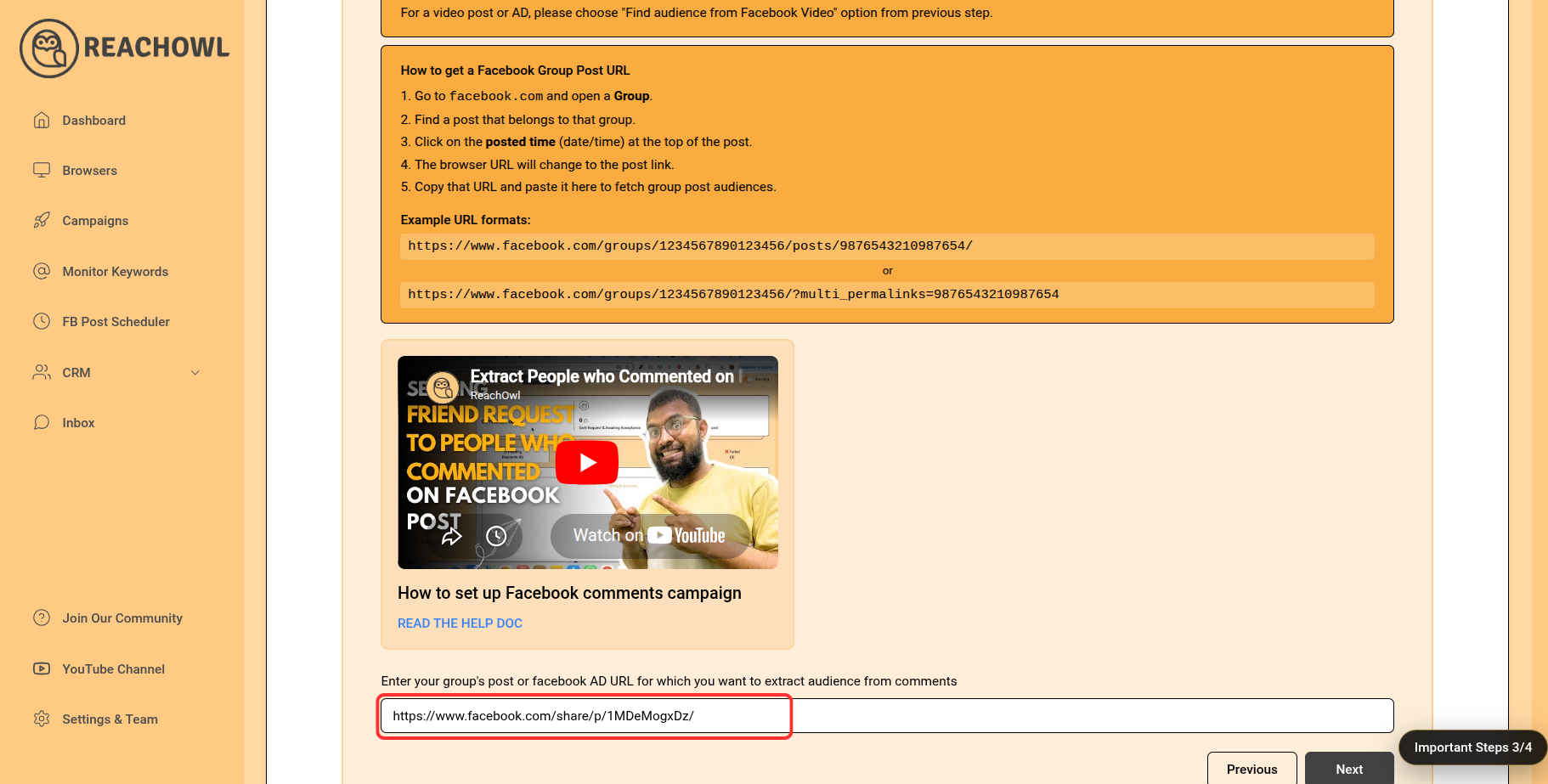
Step 5: Paste the Post URL into ReachOwl
Head back to the ReachOwl page and paste the copied post ID in the designated area. After pasting the post ID, click on the “Next” button to proceed.
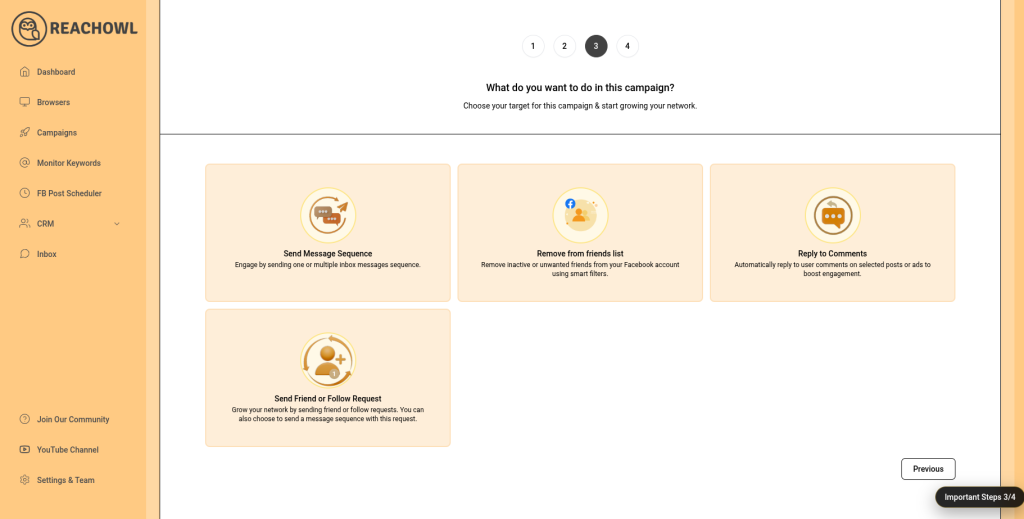
Step 6: Choose the “Friend Request” option
Now, select the “Friend Request” option based on your campaign objectives and preferences.
Step 7: Name Your Campaign
Name your campaign, for example, “Ad comment audience campaign,” to easily identify it within ReachOwl.
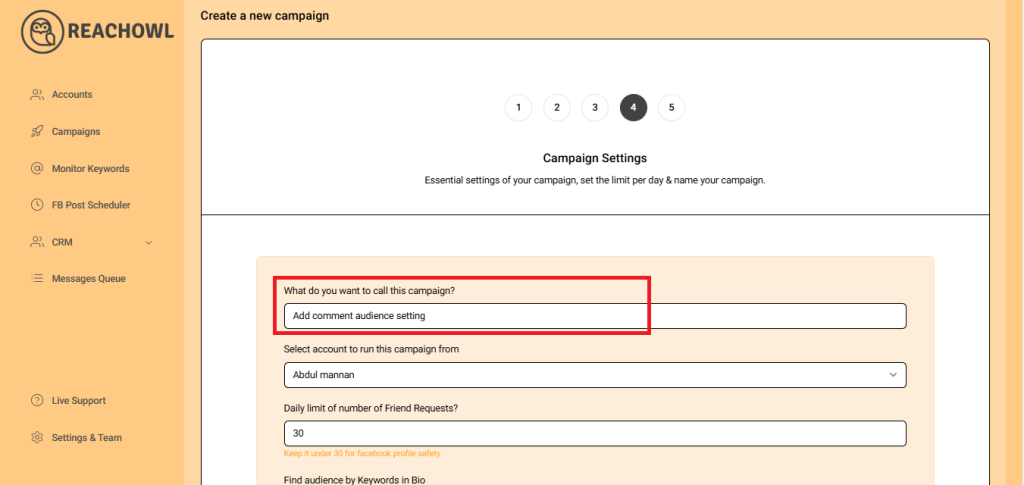
Step 8: Select team member account
Choose the team member account from which you want to run the campaign
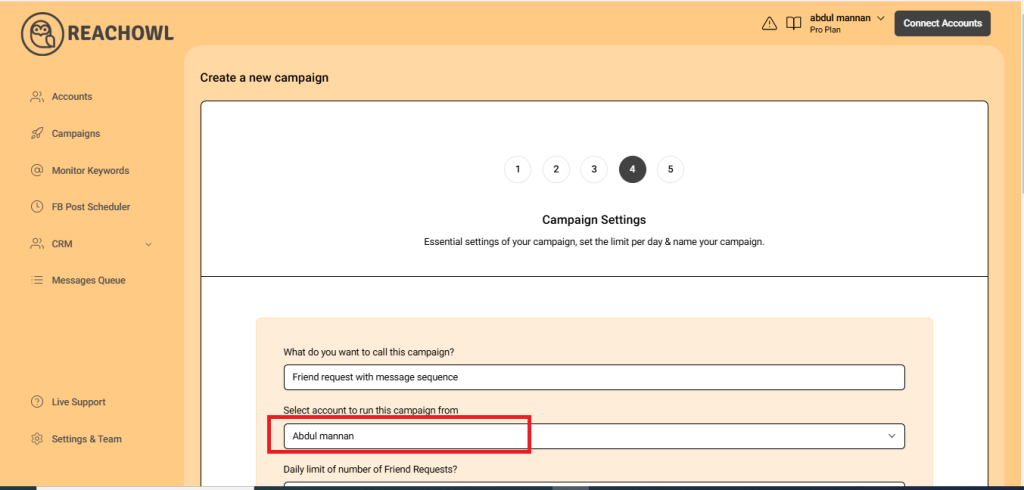
Step 9: Set Your Daily Limit
You can set a daily limit between 5-30 send friend request sent per day depending on the profile value, and you can avoid sending the exact same number of friend requests with the same friend request every day.
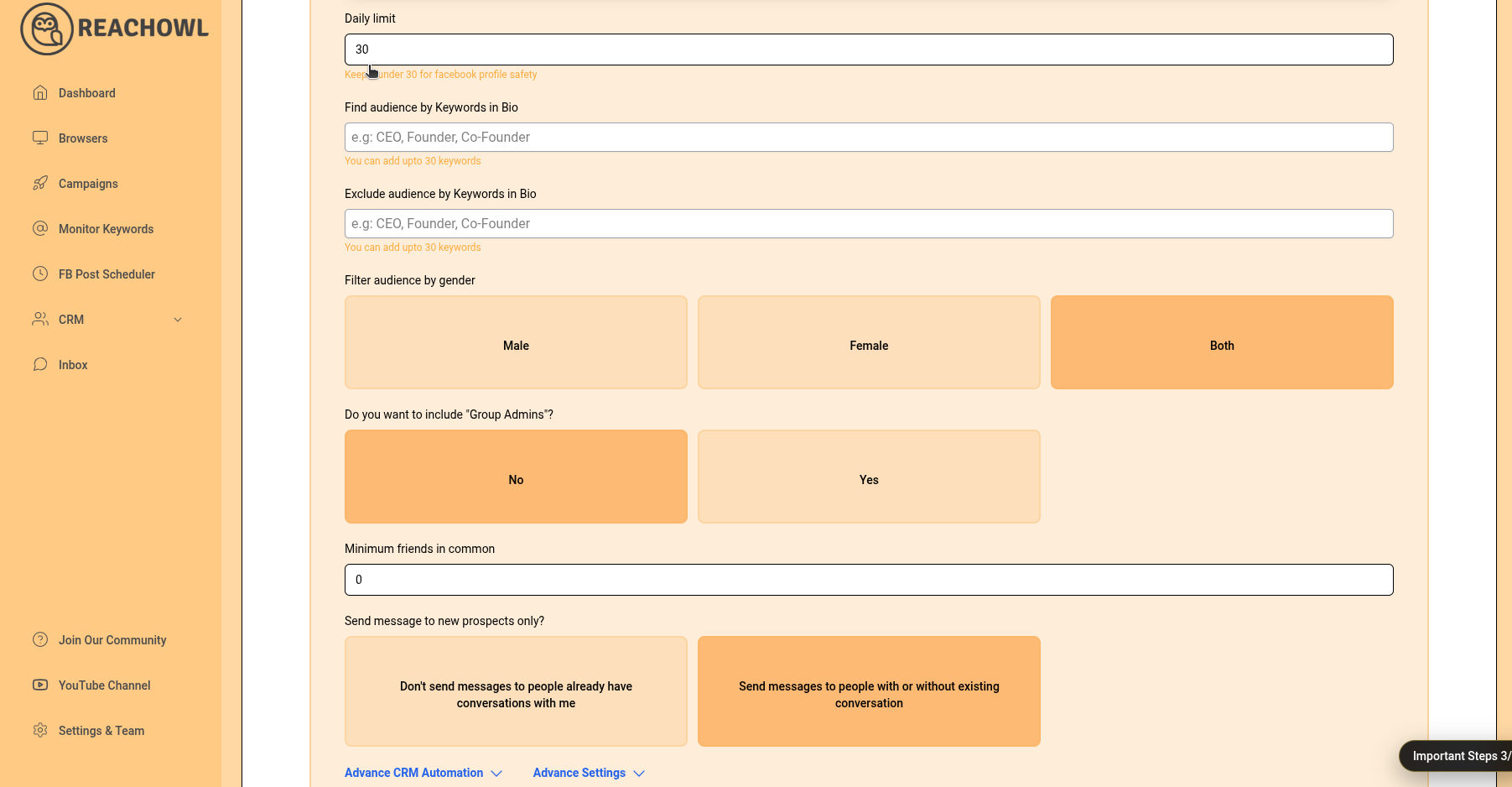
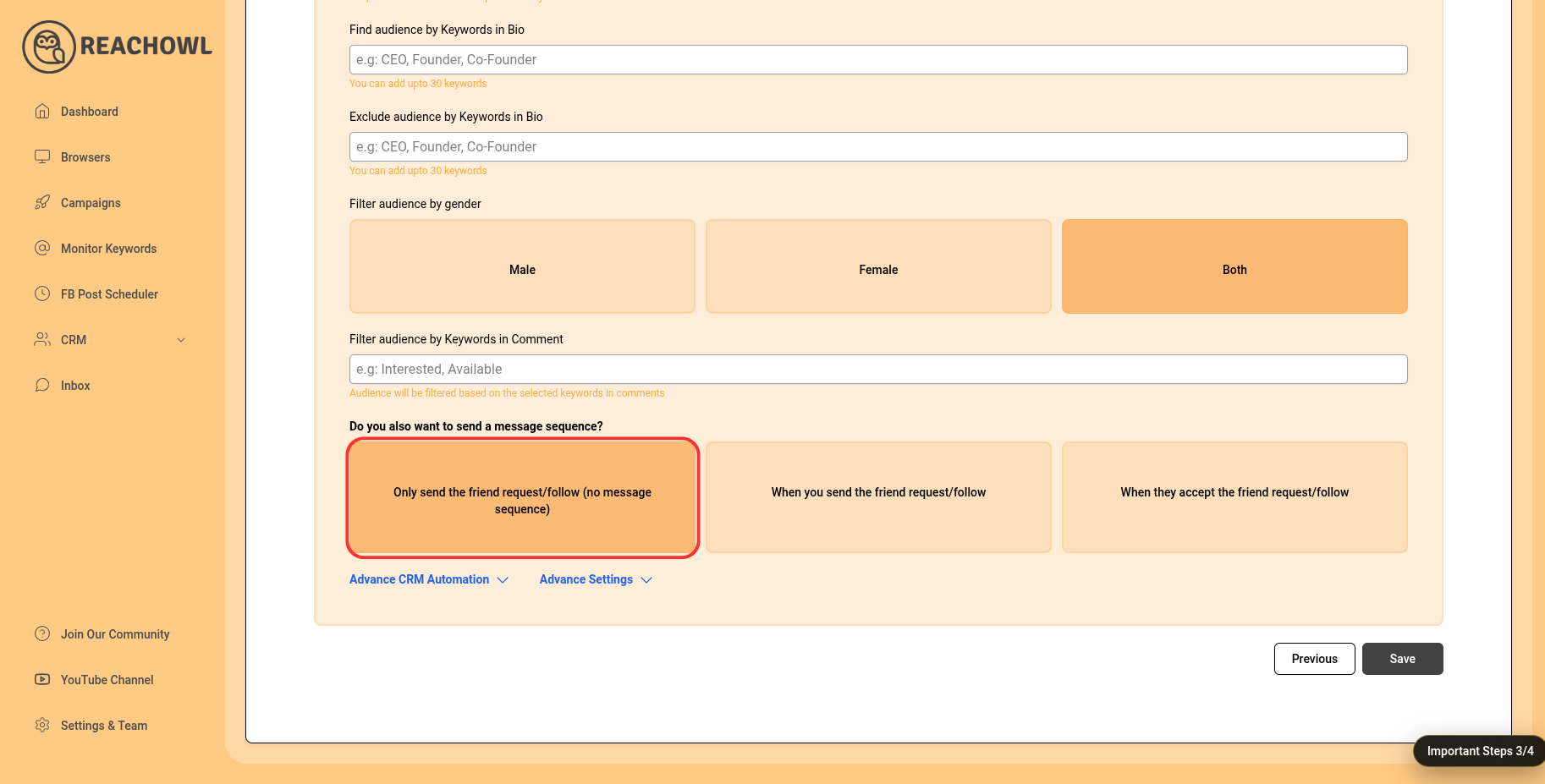
Step 10: Opt for Friend Request Only
For this specific campaign, choose the option “Only Send the Friend Request (No Message Sequence).”
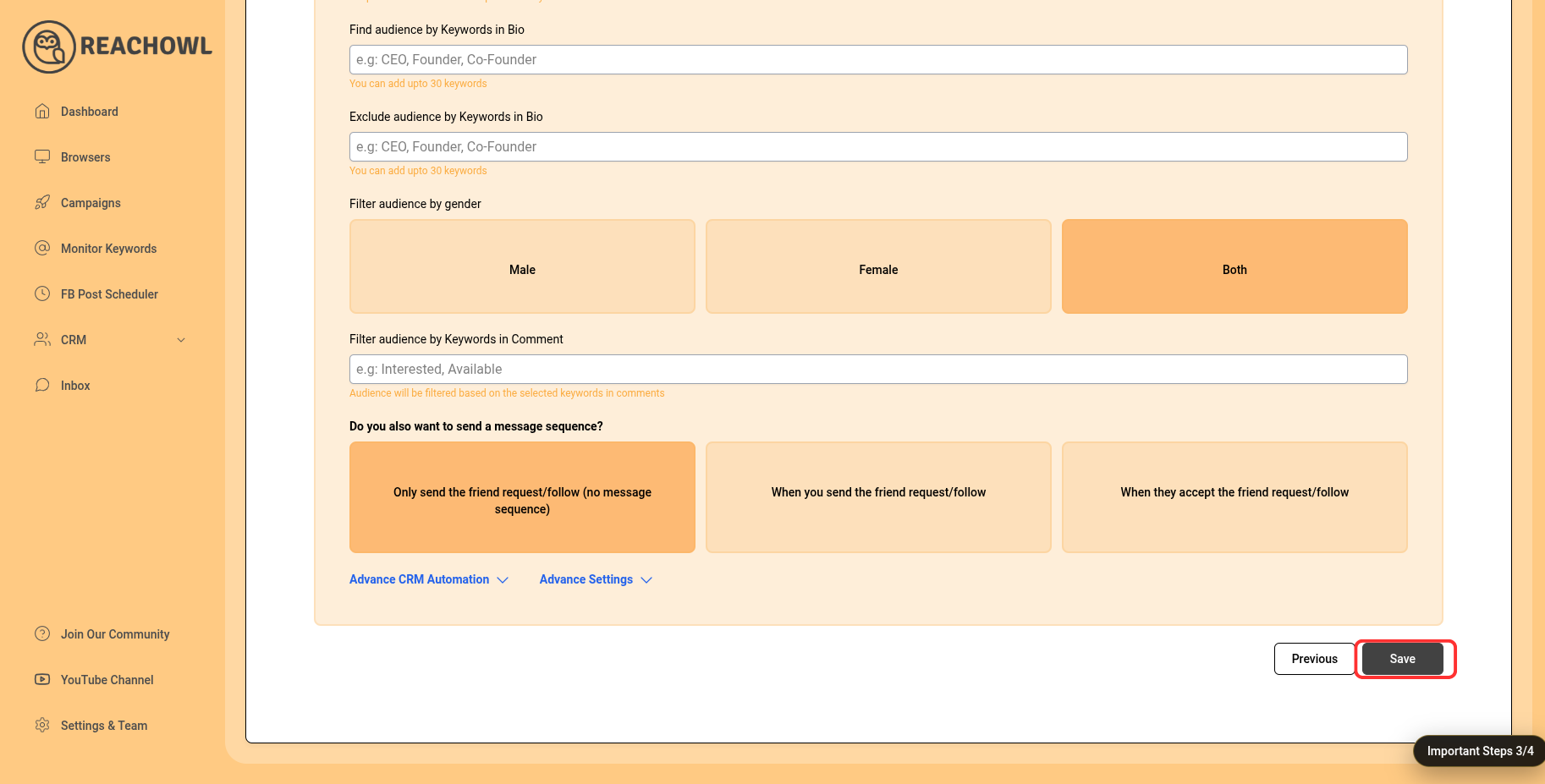
Step 11: Save Your Campaign
Once you’ve configured all the options, click on the “Save” button to preserve your campaign settings.
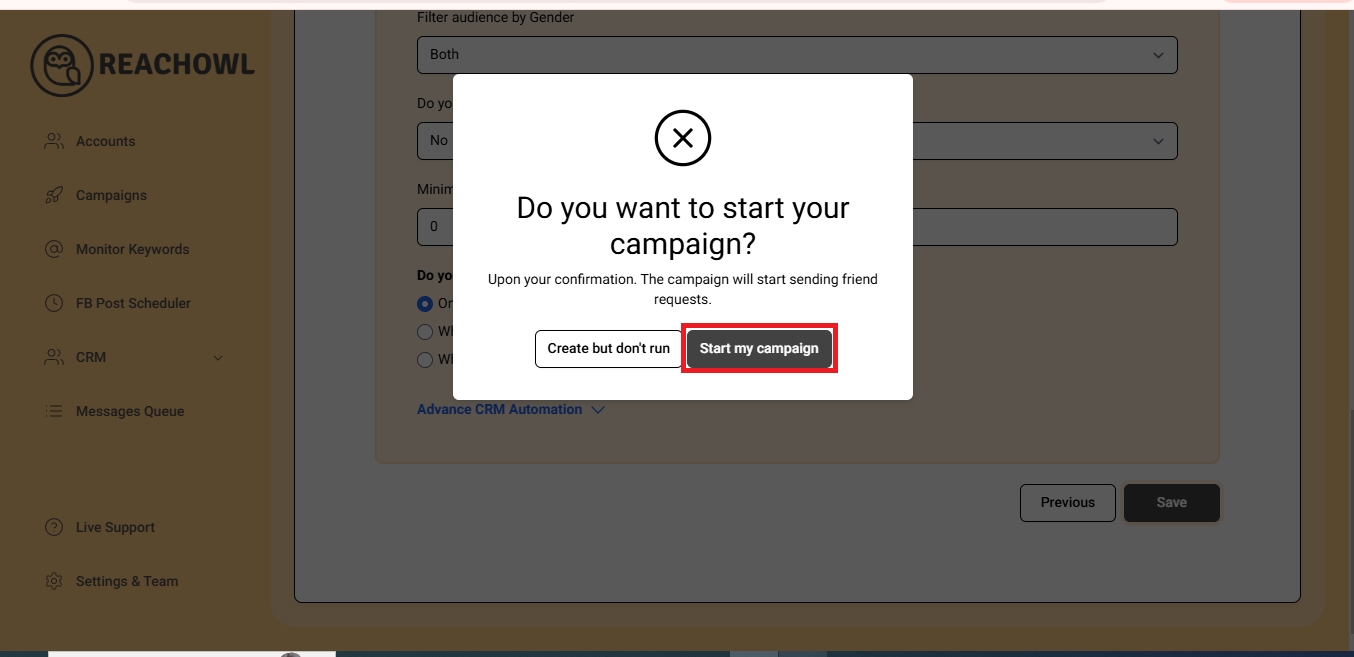
Step 12: Start Your Campaign
Now, click on “Start My Campaign” to initiate the outreach process.
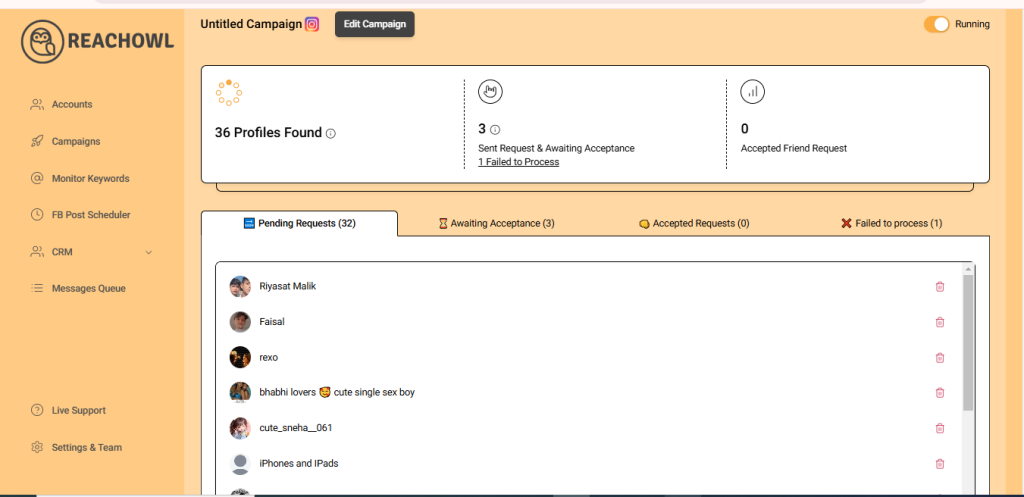
Step 13: Monitor the Progress
Use ReachOwl’s dashboard to keep track of your campaign’s progress. See the list of profiles extracted from ad comments. Monitor friend requests sent to potential leads. Track users who have accepted your connection requests.
Step 14: Review the Results
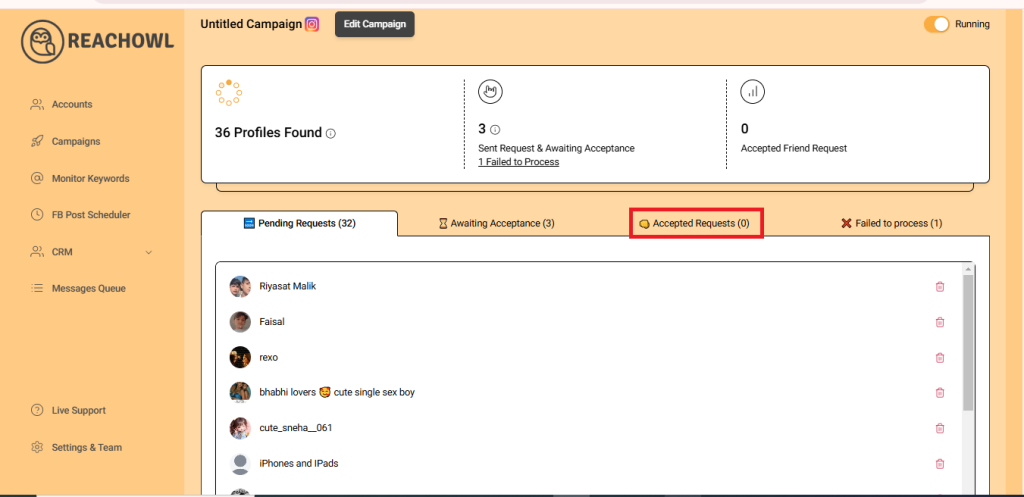
After a while, refresh the page, and you’ll notice that ReachOwl has already sent friend requests to some users. As users accept your friend requests, you’ll see the progress of your campaign.
Conclusion
With ReachOwl, reaching out to users who interacted with your Facebook video ads has never been easier. By following the steps outlined above, you can set up a successful campaign to engage with a highly relevant audience, fostering stronger connections and driving your marketing efforts forward.
Use the power of ReachOwl to enhance your outreach strategy and watch your Facebook presence thrive.
Additional Resources & Helpful Links
To get even better results from your Facebook outreach campaigns, explore these helpful resources:
- ReachOwl Website: Learn more about Facebook automation and outreach tools at Reachowl
- Start Your Free Trial: Create your ReachOwl account at Register
- Facebook Reachowl Community: Facebook Community
Final Thoughts
Targeting users who have already engaged with your Facebook video ads is one of the most effective ways to connect with warm leads. These users have already shown interest in your content, making them far more likely to respond positively to your outreach.
With ReachOwl, you can automate the process of finding commenters, sending friend requests, and building meaningful connections at scale—all while keeping your outreach organized and trackable.
Whether you’re a marketer, agency owner, coach, or business owner, this strategy can help you generate more conversations, build relationships, and convert engaged audiences into customers.