
Managing conversations manually becomes increasingly difficult as your outreach grows. With ReachOwl’s Advanced CRM, you can automatically organize contacts into different pipeline stages and trigger personalized follow-up messages based on campaign activity.
Instead of manually tracking every lead, ReachOwl moves contacts through your sales pipeline automatically, ensuring every prospect receives the right message at the right time.
In this guide, you’ll learn how to create CRM stages, configure automated follow-up messages, and build an automated outreach workflow using ReachOwl’s Advanced CRM.
What is Advanced CRM?
Advanced CRM is a powerful automation feature in ReachOwl that helps you organize leads into different stages throughout your outreach process.
As contacts interact with your campaigns, ReachOwl can automatically move them into predefined CRM stages based on specific campaign events. Each stage can also have its own automated follow-up message, allowing you to build a hands-free nurturing workflow.
Unlike traditional CRMs, ReachOwl does not include predefined stages. You have complete flexibility to create stages that match your own sales process or outreach workflow.
For example, you might create stages such as:
- Request Sent
- Message Sent
- Follow-up Sent
- Interested Prospect
- Demo Scheduled
- Customer
Or you can create any stage names that best fit your business requirements.
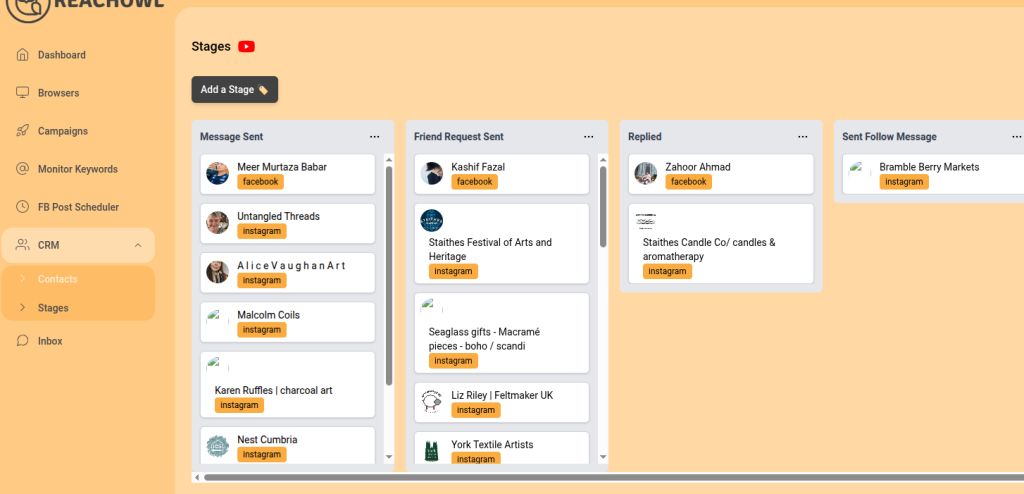
Step 1: Open CRM Stages
After logging into your ReachOwl account:
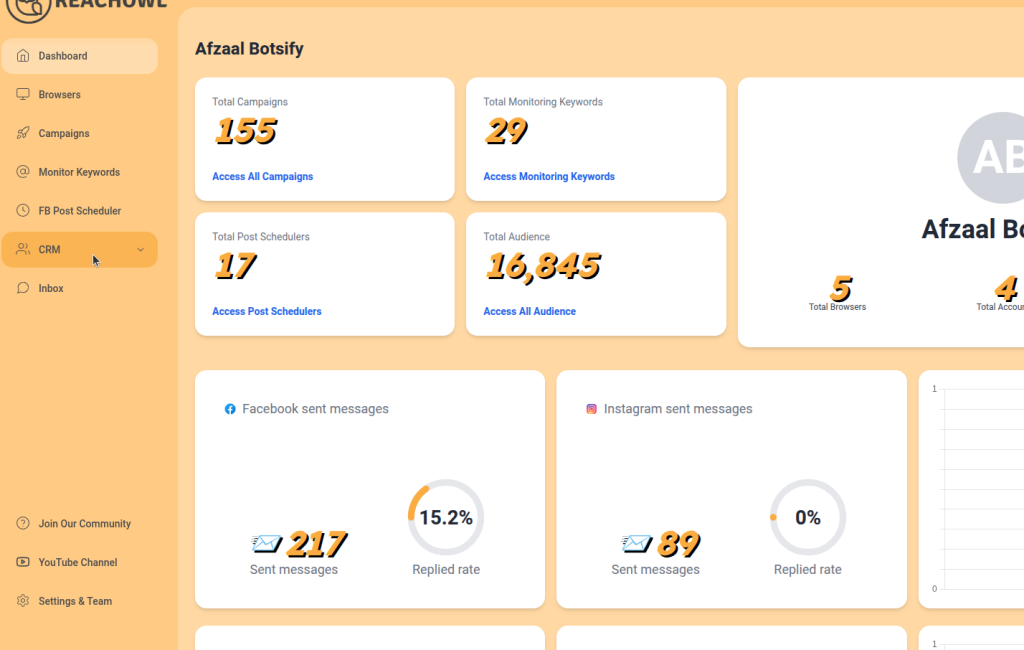
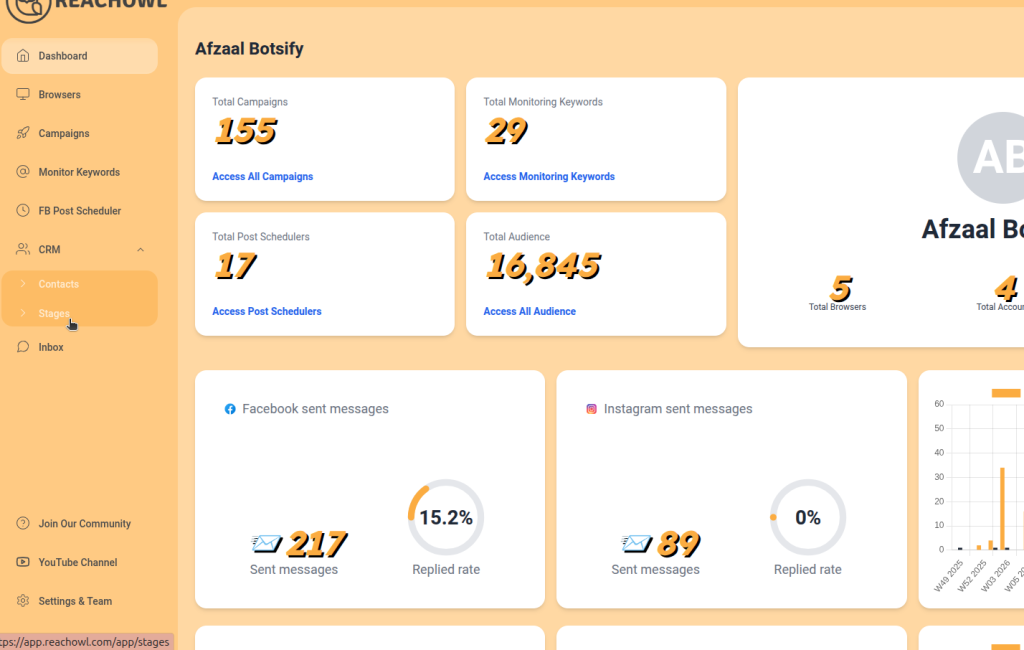
- Click CRM from the left sidebar.
- Select Stages.
The Stages page displays all of your existing CRM stages.
Step 2: Create a New CRM Stage
To create a new stage:
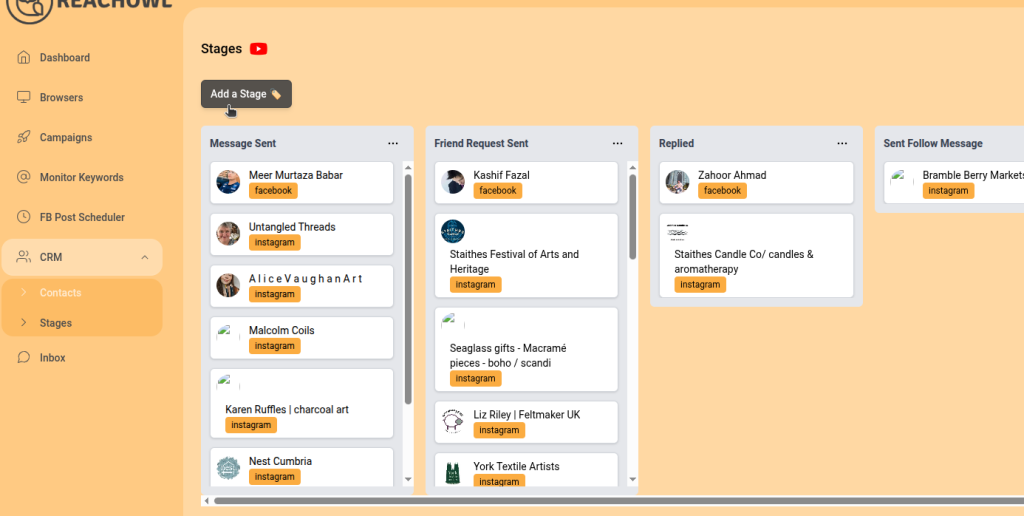
- Click Add a Stage.
- Enter a stage name that matches your workflow.
There are no predefined stage names, so you’re free to create stages based on your own outreach process.
For example:
- Request Sent
- First Message Sent
- Waiting for Reply
- Interested Prospect
- Qualified Lead
- Customer
You can also create completely custom stages that suit your team’s workflow.
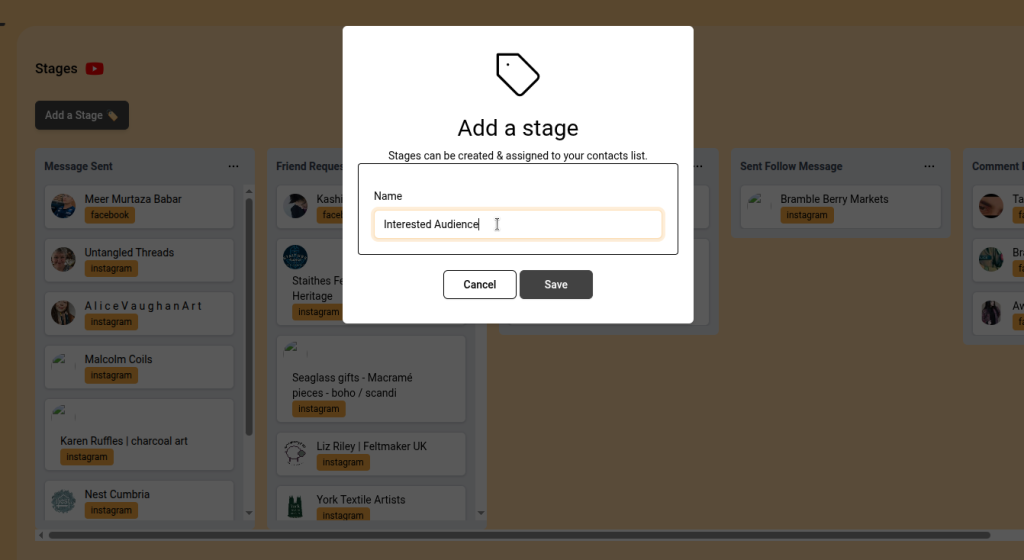
- Click Save.
Your new stage will now appear on the CRM board.
Step 3: Manage Your CRM Stage
Each CRM stage has a three-dot (⋮) menu in the upper-right corner.
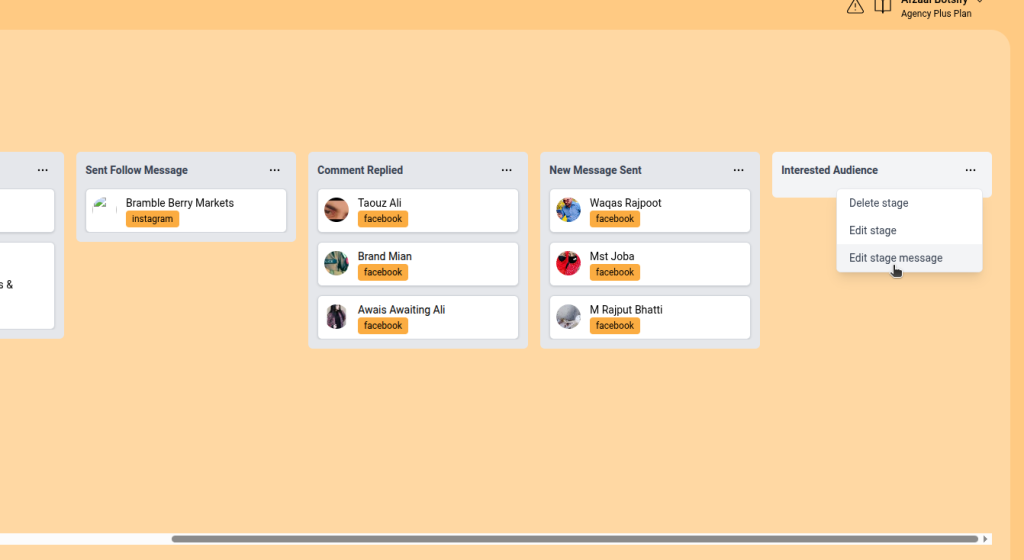
From this menu you can:
Edit Stage
Rename the stage whenever your workflow changes.
Edit Stage Message
Create or update the automated message that will be sent whenever a contact enters this stage.
Delete Stage
Remove the stage if it is no longer needed.
Step 4: Create an Automated Follow-up Message
Click Edit Stage Message.
A popup window will appear where you can create the message that should automatically be sent whenever a contact reaches this stage.
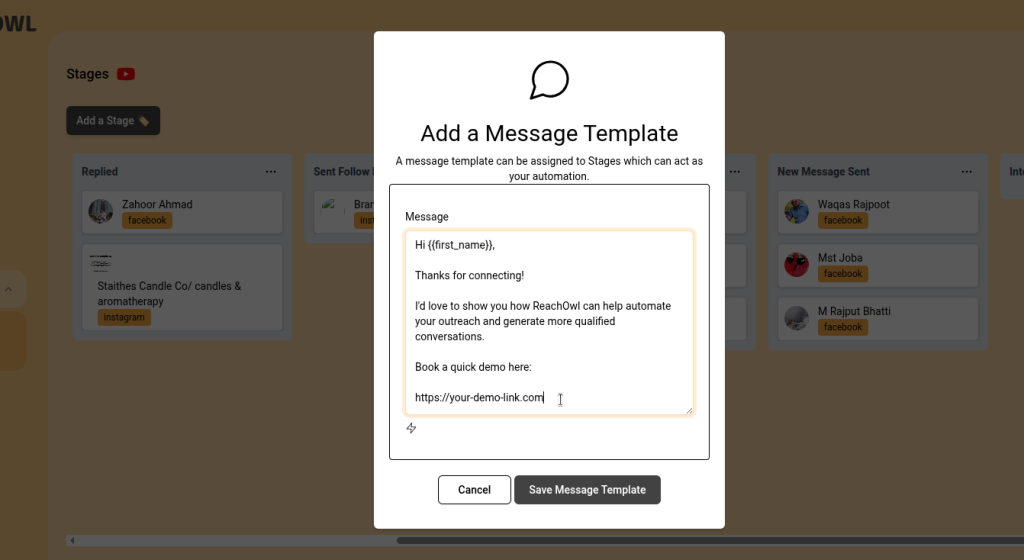
Example
Hi {{first_name}},

Thanks for connecting!

I'd love to show you how ReachOwl can help automate your outreach and generate more qualified conversations.

Book a quick demo here:

https://your-demo-link.com
After writing your message, click Save Message Template.
Your automated follow-up message is now ready.
Step 5: Create Your Campaign
Create a campaign as you normally would.
Complete all campaign settings, including:
- Audience
- Filters
- Messages
- Targeting
- Sending Options
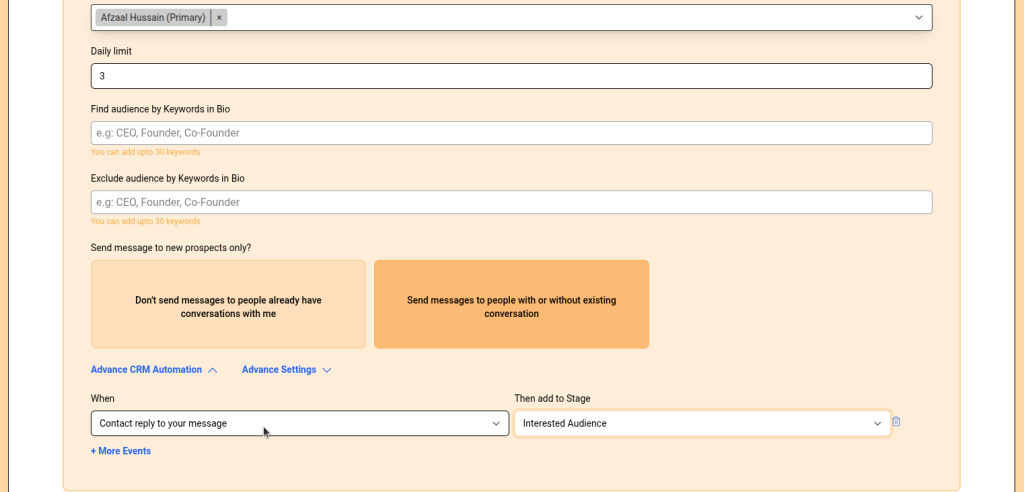
Continue through the campaign setup until you reach the Advanced CRM Automation section.
Step 6: Configure Advanced CRM Automation
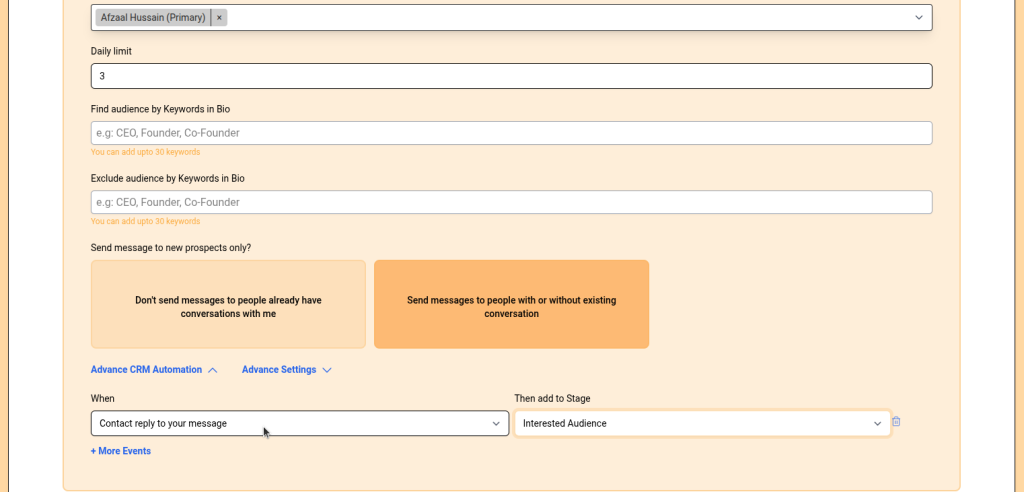
Near the bottom of the campaign setup page, you’ll find the Advanced CRM Automation section.
Here, you can create automation rules by selecting:
- When (Campaign Event)
- Then Add to Stage (CRM Stage)
For example:
When
Contact is sent a message
Then Add to Stage
Message Sent
Whenever ReachOwl successfully sends a message to a contact, that contact is automatically moved into the Message Sent CRM stage.
You can create multiple automation rules to build a complete customer journey.
Available Automation Events
ReachOwl currently supports the following automation events for moving contacts into CRM stages:
| Automation Event | Description |
|---|---|
| Contact scanned & added to the campaign | Moves a contact into a stage as soon as it is successfully scanned and added to the campaign audience. |
| Contact is sent a message | Triggered after ReachOwl successfully sends a message to the contact. |
| Contact replies to your message | Triggered when the contact responds to one of your campaign messages. |
| Contact is sent a friend request | Triggered after a friend or connection request is sent. |
| Contact accepts your friend request | Triggered when the contact accepts your friend request. |
| Contact failed to process | Triggered if ReachOwl cannot process the contact because of an error or platform limitation. |
| Contact replied to a comment | Triggered when the contact replies to a comment generated through your campaign. |
Each event can move contacts into a different CRM stage, allowing you to automate your entire outreach pipeline.
Example CRM Automation Workflow
Since every business has a different outreach process, your CRM stages can be customized to match your workflow.
Here’s one example:
| Campaign Event | Example CRM Stage |
|---|---|
| Contact scanned & added to the campaign | New Prospect |
| Contact is sent a friend request | Friend Request Sent |
| Contact accepts your friend request | Connected |
| Contact is sent a message | Initial Message Sent |
| Contact replies to your message | Interested Prospect |
| Contact replied to a comment | Comment Engaged |
| Contact failed to process | Needs Review |
This is only an example. You can create any stage names that fit your sales process, customer journey, or outreach strategy.
Benefits of Advanced CRM
Using ReachOwl’s Advanced CRM helps you:
- Automatically organize contacts into CRM stages.
- Send personalized follow-up messages automatically.
- Eliminate repetitive manual CRM updates.
- Track every lead throughout your outreach pipeline.
- Build scalable, multi-step outreach campaigns.
- Improve team organization and visibility.
- Save time while increasing engagement and response rates.
- Ensure no potential customer is overlooked.
Best Practices
To get the most from Advanced CRM:
- Use clear, descriptive stage names.
- Create follow-up messages that are short, personalized, and action-oriented.
- Avoid sending too many automated messages within a short time.
- Test your automation rules before launching large campaigns.
- Review and optimize your CRM stages regularly.
- Keep message templates updated as your offers or campaigns evolve.
Conclusion
ReachOwl’s Advanced CRM helps you build a fully automated lead management system by combining CRM stages with campaign automation rules.
As contacts move through your outreach campaigns, ReachOwl automatically updates their CRM stage based on events such as being added to a campaign, receiving a friend request, accepting a connection, receiving a message, replying to your messages, replying to comments, or encountering processing issues. You can also assign automated follow-up messages to each stage, ensuring every lead receives timely and relevant communication.
Whether you’re managing hundreds or thousands of prospects, Advanced CRM helps you stay organized, streamline follow-ups, and create a scalable outreach process that turns more conversations into customers.